How to Use Seedance 2.0: Step-by-Step for Ad Creatives
Learn how to use Seedance 2.0 on BuzzVideo AI for ads, with text-to-video, image-to-video, reference workflows, prompt tips and troubleshooting.
Seedance 2.0 is ByteDance's AI video model for creating videos from text, images, video clips and audio. It supports clips of up to 15 seconds, and the standard Seedance 2.0 model is currently available on BuzzVideo AI's Pro and Ultra plans. Starter includes Seedance 2.0 Fast and Mini instead. This guide covers three ways to create video ads with Seedance 2.0: text-to-video, image-to-video and reference-to-video, plus prompt tips, a model comparison and fixes for common problems.
New to Seedance? Explore BuzzVideo AI's Seedance model guide to understand the available versions before you start.
Pricing, credit costs, model availability and published reference limits were verified on September 24, 2026.
What you need before you start
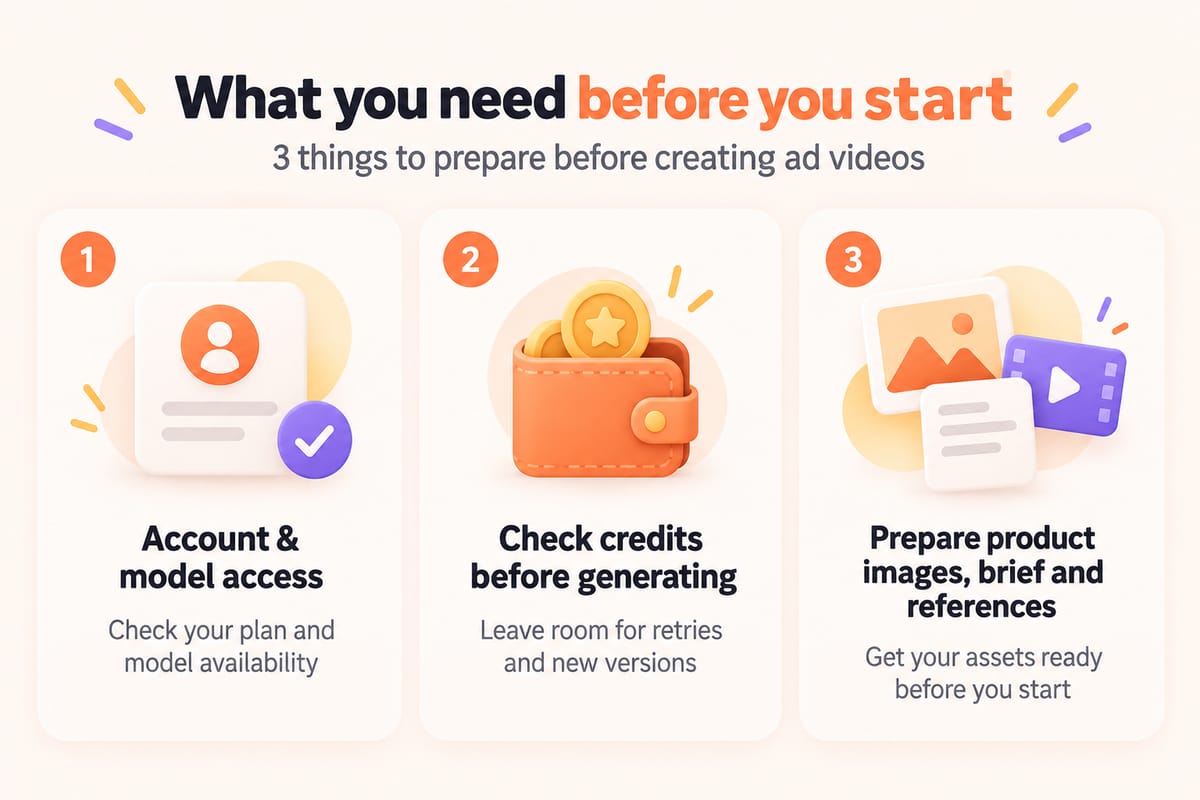
Before creating your first ad with Seedance 2.0, prepare three things: a BuzzVideo AI account with model access, enough credits and the assets for your project.
1. Check your account and model access
Sign in to BuzzVideo AI and check whether your subscription includes Seedance 2.0.
According to BuzzVideo AI's pricing page, the standard Seedance 2.0 model is listed under Pro and Ultra plans. Starter includes Seedance 2.0 Fast and Mini, but not the standard version.
If you cannot find Seedance 2.0 in your account, check your current plan and available models before proceeding.
2. Check your credit balance
BuzzVideo AI uses credits for each generation, and the amount depends on the model, duration and resolution. As of September 24, 2026, a 10-second HD Seedance 2.0 video is listed at 260 credits. The Pro plan includes 4,900 credits per month, while the Ultra plan includes 8,900 credits per month. Check BuzzVideo AI's pricing page for the latest credit costs before generating, especially if you plan to create several variations of the same ad.
Leave enough credits for more than one attempt. The first result may not fully match your creative brief, so you may need to adjust the prompt or references and generate another version.
3. Prepare your ad assets
You do not need a large collection of reference files for every video. Start with the materials that matter to your ad.
For example, a skincare product ad might need:
- Product images: Clear photos showing the bottle, packaging and label.
- Creative brief: Your target audience, video objective and key message.
- Reference assets: Images, videos or audio showing the character, setting, camera movement or sound you want.
If you are testing an early concept, a text prompt may be enough to get started. If the product needs to look like the real item, provide an actual product image as a reference.
Before generating, set one clear objective. You might want to showcase the product's texture, demonstrate how it is used or create a short-form video hook.
A focused objective makes it easier to write your prompt and judge whether the result matches your brief.
Step by step: text-to-video, image-to-video, reference-to-video on BuzzVideo AI
Seedance 2.0 supports text, image, video and audio inputs. If you're new to the model, start by looking at the assets you already have.
Use text-to-video when you only have an idea. Choose image-to-video when you have a product photo. If you need to guide the product, character, setting and camera movement using multiple assets, consider reference-to-video.
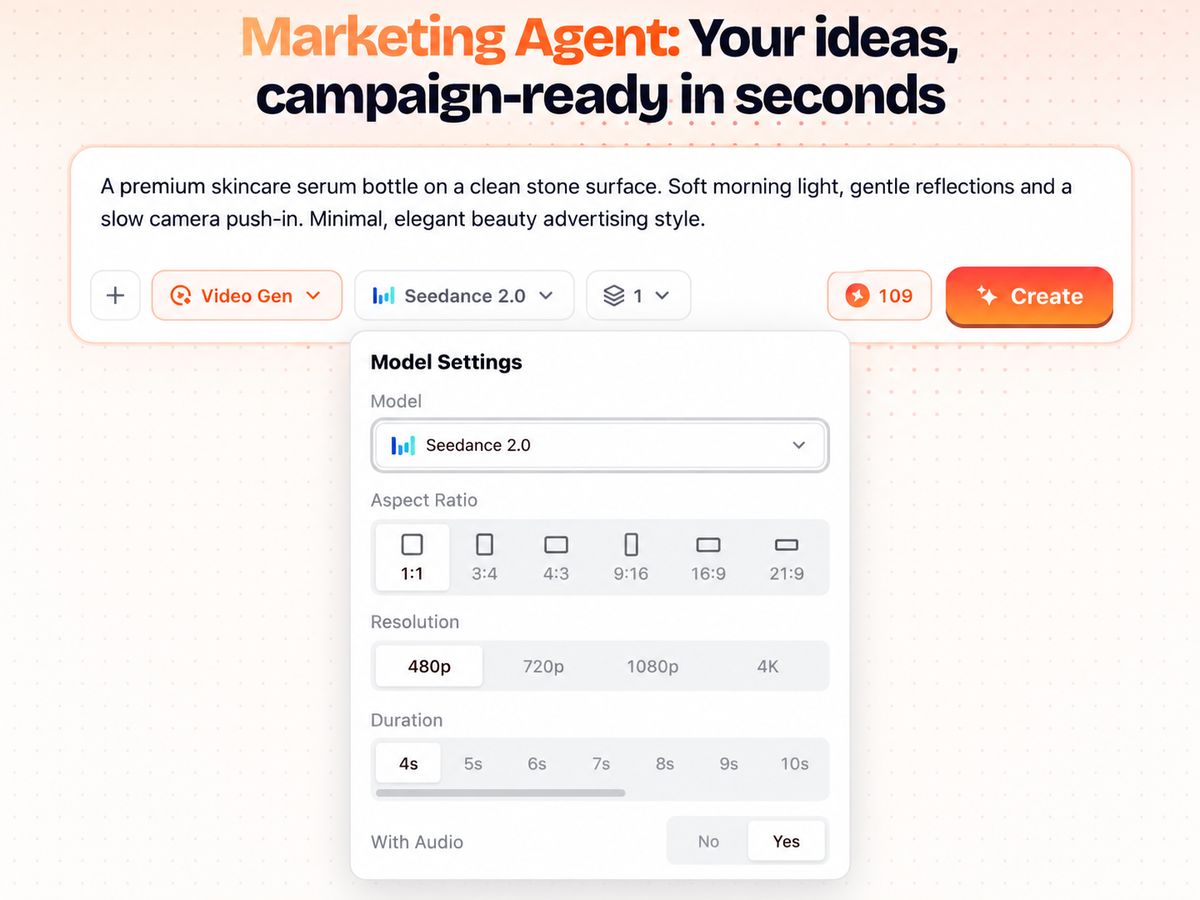
Here are three workflows for creating video ads. The screenshots below show the current BuzzVideo AI Generate Video interface for the three Seedance 2.0 workflows. Available controls and settings may vary by generation mode.
Method 1: Text-to-video — Create an ad from a prompt
Text-to-video is useful when you want to test an ad concept before preparing product images or other reference assets. BuzzVideo AI's Generate Video tool supports text-to-video, image-to-video and reference-to-video workflows.
Step 1: Open Generate Video and select Seedance 2.0
Open the Generate Video tool and choose Seedance 2.0 as your video model. The standard Seedance 2.0 model is available on Pro and Ultra plans.
Step 2: Write your prompt
Describe what should appear in the video and what should happen. Include the main subject, action, setting, camera movement, lighting and visual style.
For an ad creative, keep the main message clear rather than adding too many actions at once.
Step 3: Choose your generation settings
Choose the available duration, resolution, aspect ratio and audio options shown for your selected Seedance 2.0 mode. Seedance 2.0's published specifications support clips of up to 15 seconds and resolutions up to 4K, but the controls available in Generate Video may vary by generation mode.
Step 4: Generate the video
Review your prompt and settings, then start the generation. Check the current credit cost before generating, especially if you plan to create several variations.
Step 5: Review the result
Preview the finished video and compare it with your creative brief. Check the subject, movement, framing and overall visual style before deciding whether to revise the prompt and generate another version.
For example:
Text-to-video prompt
A premium skincare serum bottle on a clean stone surface. Soft morning light, gentle reflections and a slow camera push-in. Minimal, elegant beauty advertising style.
Want more prompt ideas? Explore BuzzVideo AI's video prompt examples to see finished clips, full prompts and generation settings.
Keep in mind that text alone does not provide the model with the exact appearance of a real product. If the packaging needs to match a specific product, use an actual product image in an image-to-video or reference-based workflow.
Method 2: Image-to-video — Turn a product photo into a video
Image-to-video is useful when you already have a product photo, campaign image or other still visual that you want to animate. BuzzVideo AI lists image-to-video as one of the workflows available through Generate Video.
Step 1: Prepare a clear product image
Choose an image where the product is easy to see. If packaging accuracy matters, use a clear reference with the correct shape, colors, logo and label layout.
Step 2: Add the image as a reference
Upload the product image in Generate Video and use it as the main visual reference for the clip. BuzzVideo AI's published examples display uploaded assets as references, such as Reference 1.
Step 3: Write the motion prompt
Instead of describing the product from scratch, focus the prompt on what should move.
For example, specify:
- camera movement;
- product movement;
- lighting changes;
- background motion;
- details that should remain unchanged.
Step 4: Choose your video settings and generate
Choose the available duration, resolution, aspect ratio and audio options shown for your selected Seedance 2.0 mode, then review the settings before generating.
Step 5: Check the product details
Preview the output carefully. Compare the generated product with your original image, especially the shape, colors, logo, label placement and packaging details.
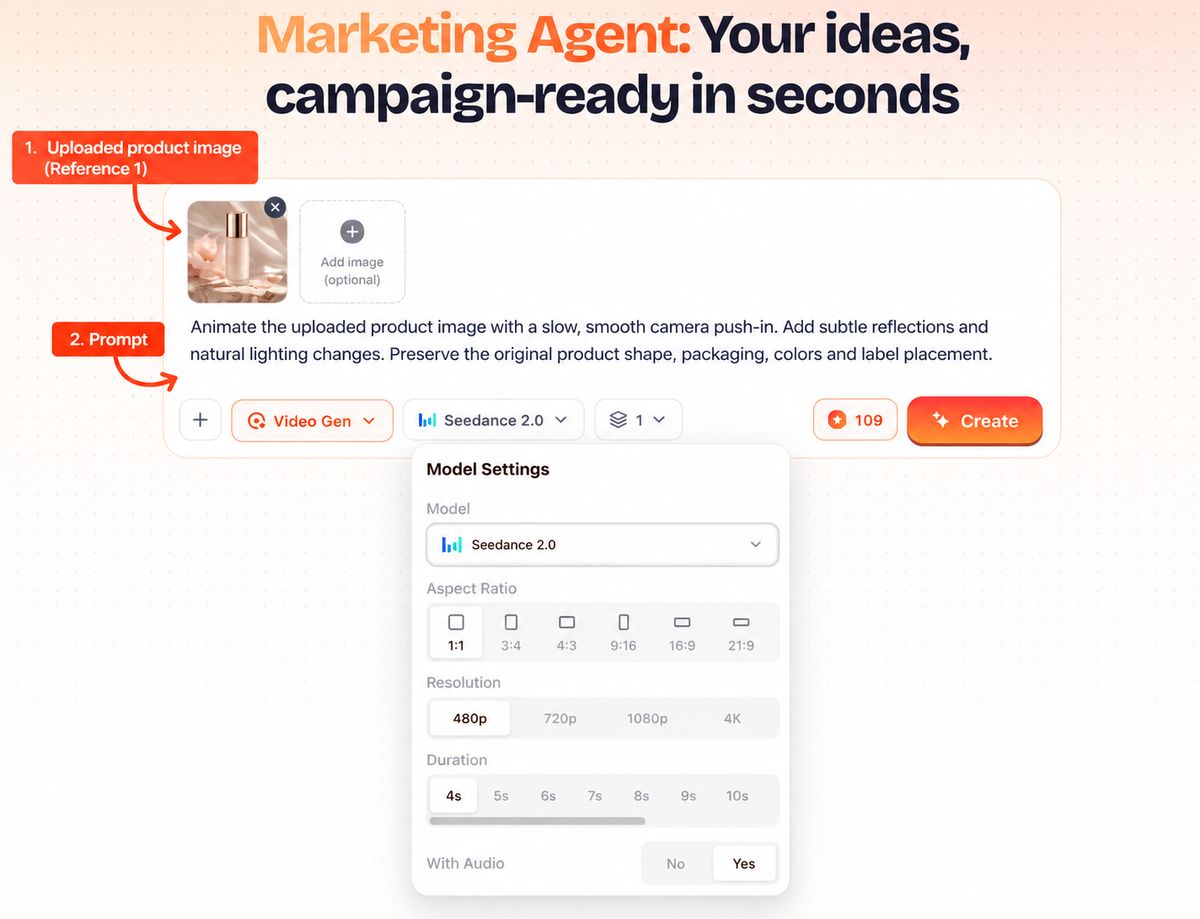
For example:
Image-to-video prompt
Animate the uploaded product image with a slow, smooth camera push-in. Add subtle reflections and natural lighting changes. Preserve the original product shape, packaging, colors and label placement.
Method 3: Reference-to-video — Guide the video with multiple assets
Reference-to-video is useful when one prompt or one product image is not enough to describe the ad you want. Seedance 2.0 can work with multiple types of reference material, while BuzzVideo AI's Generate Video tool includes a reference-to-video workflow.
Step 1: Decide what each reference should control
Give each asset a clear purpose before uploading it.
For example:
- a product image for packaging and product appearance;
- a character image for the person's appearance;
- a reference clip for movement or camera direction;
- an audio reference where supported by the current generation mode.
Do not add extra references unless they help explain the result you want.
Step 2: Add your reference assets
Upload the references supported by your current BuzzVideo AI generation mode. Seedance 2.0 supports text, image, video and audio inputs.
Step 3: Reference the assets in your prompt
BuzzVideo AI tells users to use @ to reference uploaded files, and its published examples use numbered references such as @image 1 and @image 2.
Explain what each asset is for rather than simply uploading the files.
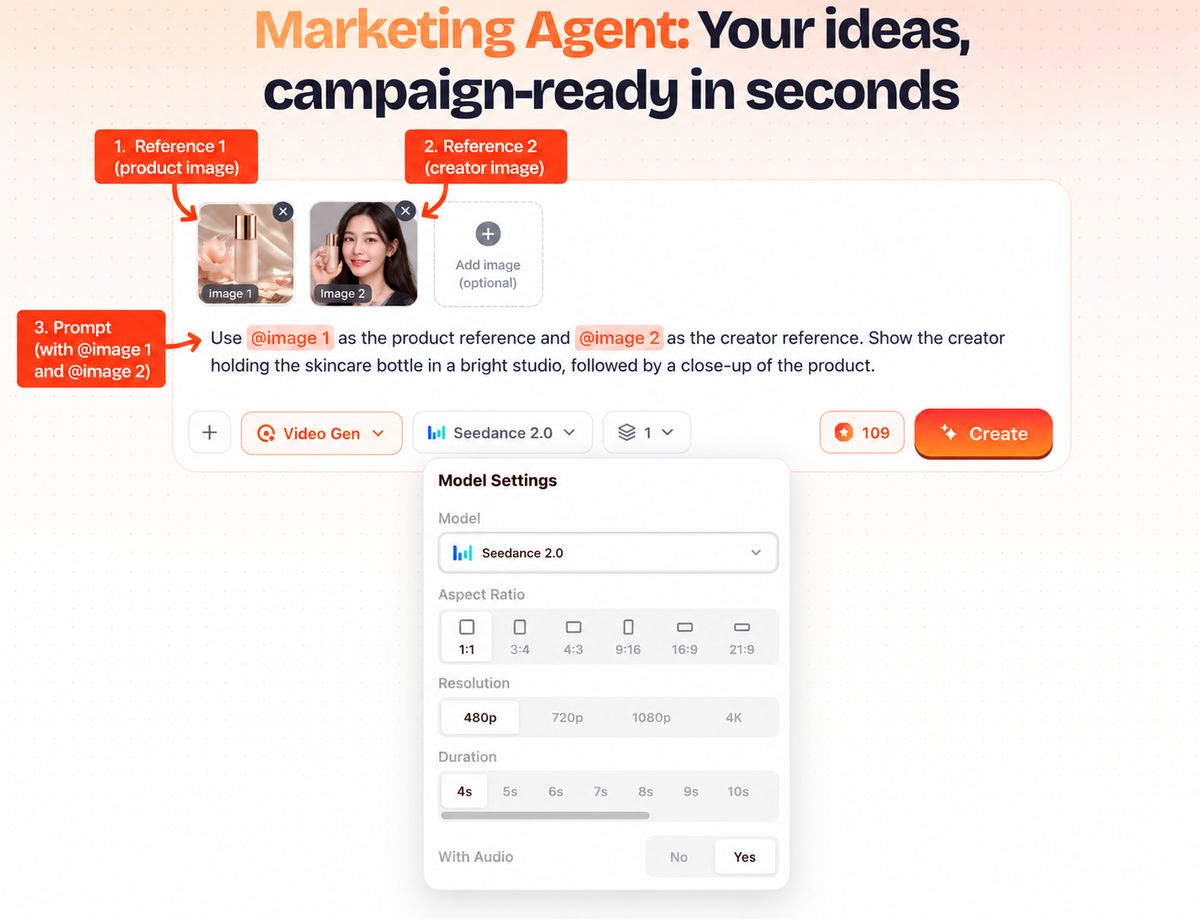
For example:
Reference-to-video prompt
Use @image 1 as the product reference and @image 2 as the creator reference. Show the creator holding the skincare bottle in a bright studio, followed by a close-up of the product. Keep the creator's appearance and product packaging consistent across both shots.
Explore BuzzVideo AI's UGC reference example to see how separate creator and product references can be used in one prompt.
ByteDance's own Seedance 2.0 examples use the same type of numbered reference instruction, such as @Image 1, to assign different roles to reference assets.
Step 4: Set the video options and generate
Choose the available duration, resolution, aspect ratio and audio options shown for your selected Seedance 2.0 mode. Review the prompt and references before starting the generation.
Step 5: Check consistency across the video
Preview the output and compare it with your reference assets. Check whether the product, character, setting and other important details stay consistent throughout the clip.
If one element is wrong, adjust the instruction for that reference rather than rewriting the entire prompt at once.
How many reference files can you use?
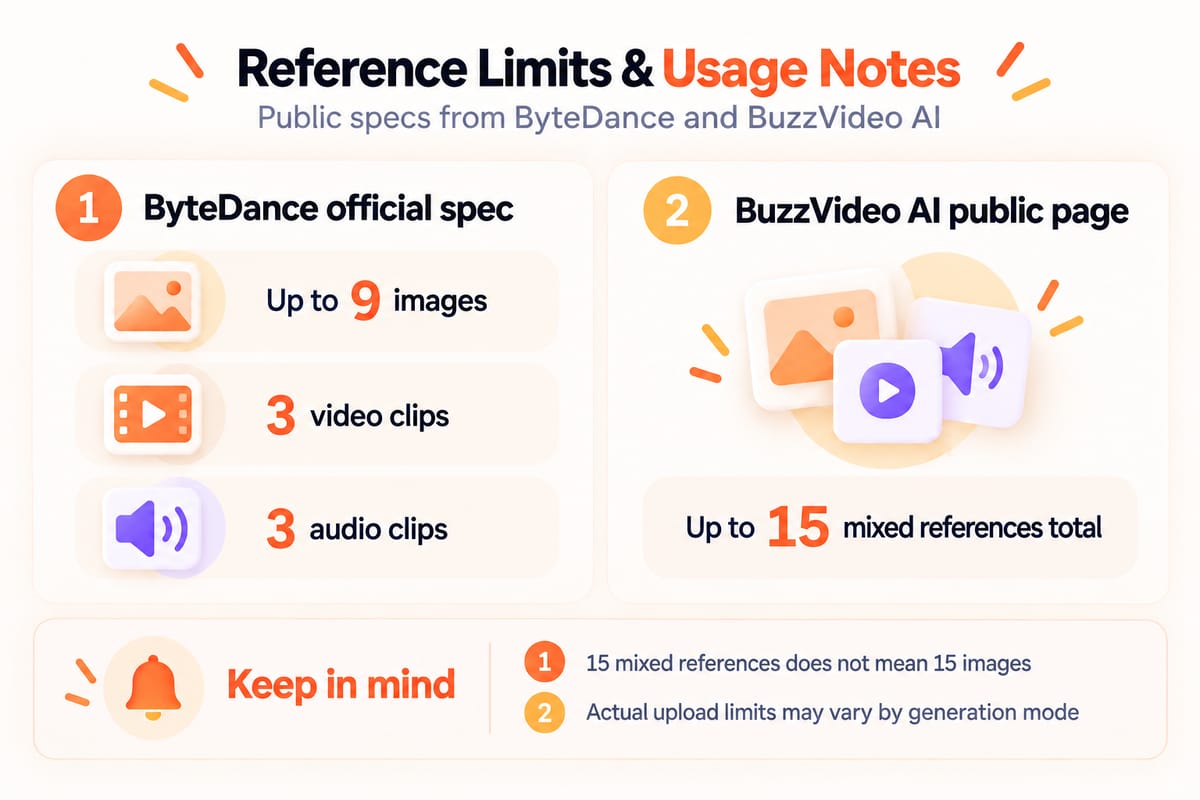
According to ByteDance's official Seedance 2.0 documentation, Seedance 2.0 supports up to 9 images, 3 video clips and 3 audio clips, alongside text instructions.
BuzzVideo AI's Seedance model page currently lists Seedance 2.0 as supporting up to 15 mixed reference files.
However, upload limits may vary by implementation and generation mode. Check the limits shown in your current BuzzVideo AI interface before adding your assets.
Prompt tips for Seedance 2.0
Clear prompts can help Seedance 2.0 produce videos that are closer to your creative brief. Focus on the subject, action, camera and visual style rather than making every prompt as long as possible.
Here are five practical tips.
1. Start with a clear subject
Tell the model what the video should show. It could be a skincare bottle, a creator introducing a product or an item displayed on a table.
Keep the main subject clear. Adding too many products or characters at once can make the scene harder to control.
2. Describe a specific action
Instead of writing "Create a beautiful product video", explain what should happen.
For example, ask the product to rotate slowly, the creator to pick it up or the camera to move toward the product.
Specific actions also make it easier to check whether the output follows your brief.
3. Add camera and lighting details
Describe the framing, camera movement and lighting you want.
For example:
Close-up shot, slow camera push-in, soft studio lighting.
This gives the model clearer instructions than using a broad term such as "cinematic" on its own.
4. Identify the details that must stay consistent
For a real product ad, specify which details should remain unchanged, such as the bottle shape, color, label position and packaging.
If you are using a character reference, you can also ask the model to preserve the person's appearance and clothing.
However, prompts cannot guarantee perfect consistency. Always review the final video before using it in a campaign.
5. Test a simple shot before adding more complexity
Start with a product close-up or one clear action. Once you have reviewed the result, try adding characters, transitions or multiple shots.
If your first prompt includes too many instructions, it can be difficult to identify what caused an unwanted result.
Change one or two instructions at a time so you can compare the outputs more easily.
Seedance 2.0 vs 2.0 Fast vs 2.5: which to pick per job
Which Seedance version should you use for your ad? Start with the type of video you need, your reference assets and your credit budget.
The newest model is not automatically necessary for every project. Choose a version based on the job you want to complete.
| Ad task | Model to consider | Why consider it |
|---|---|---|
| Product videos and short clips using multiple references | Seedance 2.0 | Supports text, image, video and audio inputs and clips of up to 15 seconds. The standard model is available on Pro and Ultra. |
| Testing several ad hooks or visual concepts | Seedance 2.0 Fast | Designed for faster, lower-cost iterations. BuzzVideo AI lists it from the Starter plan. |
| Longer product stories or multi-shot ads | Seedance 2.5 | Supports clips of up to 30 seconds and up to 50 multimodal reference assets. Available on Pro and Ultra. |
This comparison is based on published specifications and BuzzVideo AI's product descriptions, not hands-on testing.
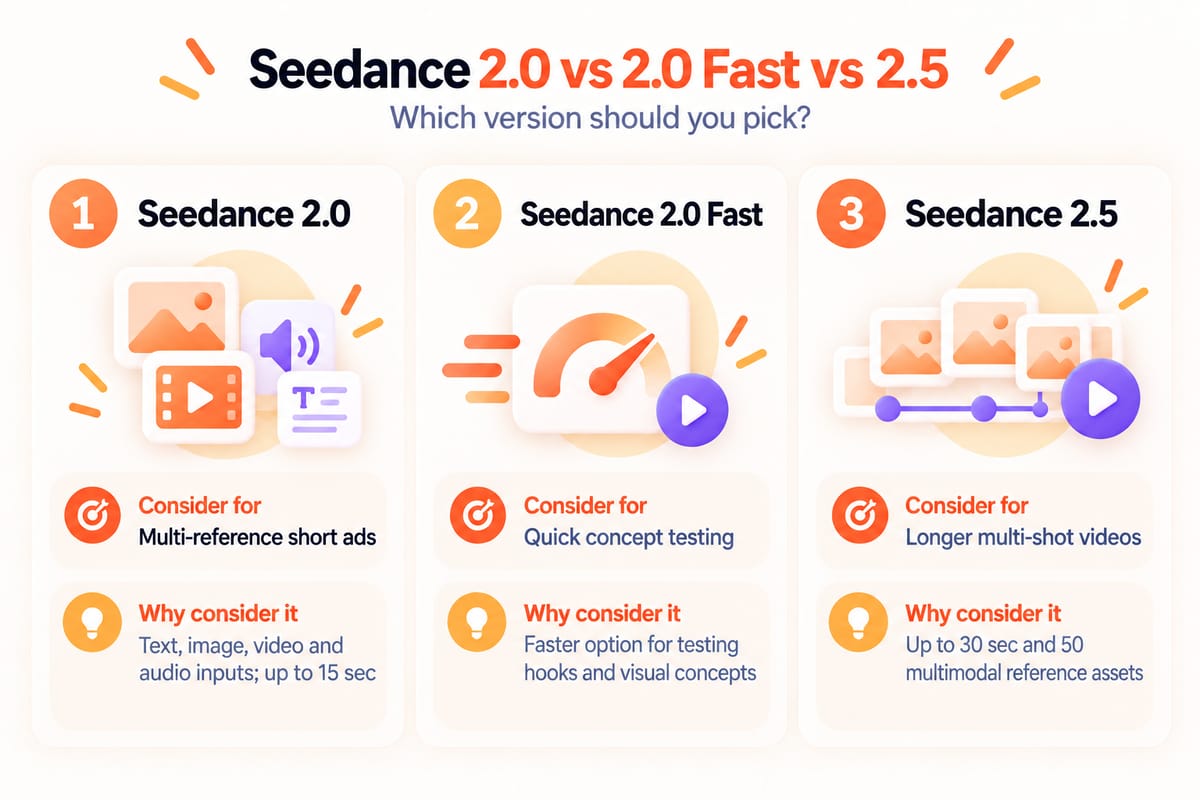
For full specifications, credit costs and plan availability, see BuzzVideo AI's Seedance model comparison.
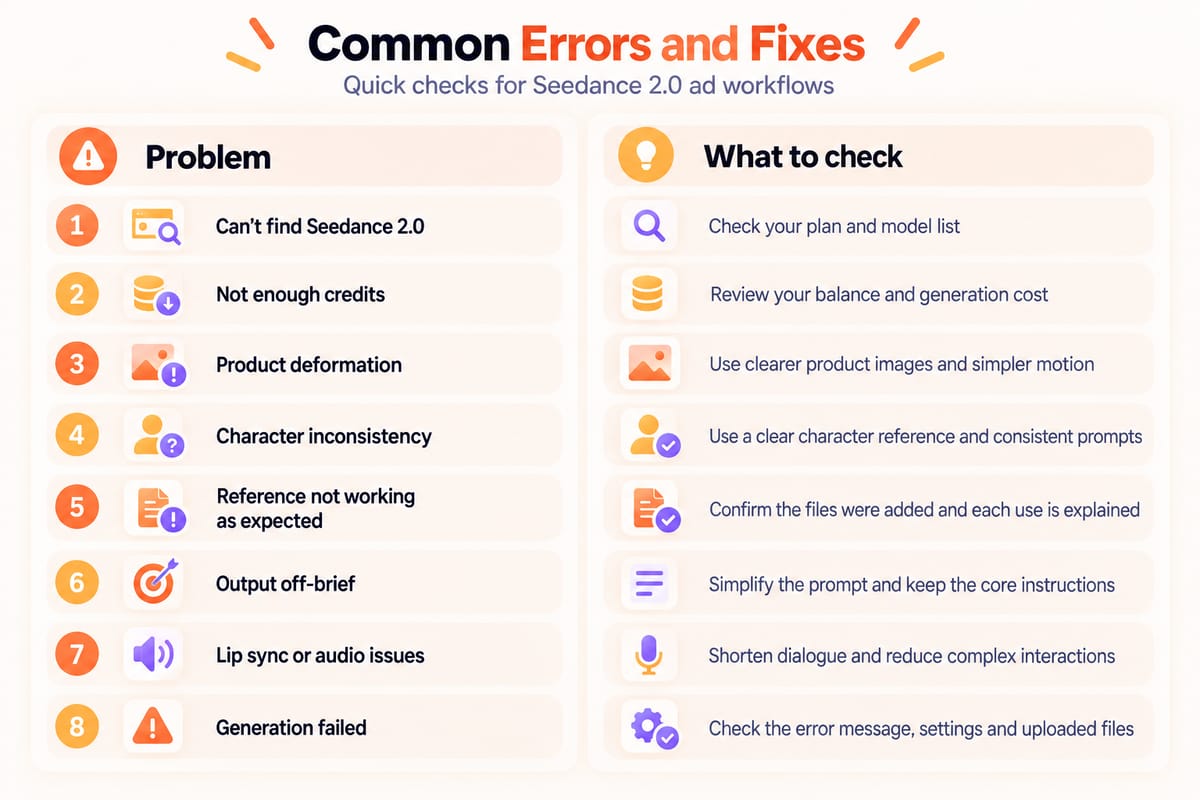
Common errors and fixes
When creating ads with Seedance 2.0, you may see problems such as distorted packaging, inconsistent characters, reference assets not working as expected or a video that misses the creative brief.
Use the following checklist to identify what needs attention.
| Common problem | What to try |
|---|---|
| Cannot find Seedance 2.0 | The standard Seedance 2.0 model is available on Pro and Ultra. Starter includes Seedance 2.0 Fast and Mini instead, so check your current plan first. |
| Not enough credits | Check your balance and the credit cost of your selected settings. |
| Product looks distorted | Add a clear product image, simplify complex movements and review the shape, logo and packaging. |
| Character changes between shots | Use a clear character reference, specify the appearance and clothing to preserve, and remove conflicting instructions or assets. |
| Reference assets are not followed | Check that the assets were added successfully and that the prompt explains the role of each reference. |
| Video misses the creative brief | Simplify the prompt. Keep the main subject, action, camera movement and style before adding more detail. |
| Lip-sync or audio sounds unnatural | Try shorter dialogue and simpler character interactions, then review the audio and visuals again. |
| Generation fails or cannot be submitted | Read the error message and check your credits, assets and settings. If the problem continues, contact BuzzVideo AI support. |
How should you troubleshoot a result?
In its official Seedance 2.0 announcement, ByteDance notes that the model still has room for improvement in detail stability, multi-subject consistency, text rendering and occasional audio distortion.
If a video misses your creative brief, identify the main issue first. Adjust one or two prompt instructions or reference assets, then generate another version and compare the results.
What should you check before launching an ad?
Check that product names, logos, packaging and promotional messages are accurate. According to BuzzVideo AI's current plan information, commercial use is included with every paid plan, covering generated content used for ads, social media, product pages and paid client work. However, this does not automatically give you rights to third-party trademarks, real people's likenesses, images, videos or audio used as references. Make sure you have the necessary rights or permission to use these materials.
Verify product-performance claims and other advertising claims against reliable product information before publishing. Do not rely on unverified AI-generated details.
FAQ
1. How to use Seedance for free?
BuzzVideo AI offers a free account with 500 one-time credits, but its current Free plan does not include video generation. To use the standard Seedance 2.0 model, you need a paid plan that includes it. Check BuzzVideo AI's pricing page for current model access and credit allowances.
2. Where can I use Seedance 2.0?
You can use the standard Seedance 2.0 model on BuzzVideo AI with a Pro or Ultra plan. The Seedance model page lists the currently available Seedance versions and access options.
3. What is Seedance 2.0 good for?
Seedance 2.0 can be used for product showcases, short-form video ads and videos that need multiple references, such as creator-style ads combining product, character and camera references. Review each output to see whether it meets your brief.
4. Is Seedance 2.0 unlimited?
No. Video generation on BuzzVideo AI uses credits, and allowances and model access vary by plan. The number of videos you can generate depends on your credit balance, selected model and generation settings.
Ready to create your next video ad? Try Seedance 2.5 and explore the Seedance models available on BuzzVideo AI.

About the author
Hai Taeng
SEO Content Editor
With experience in SEO content writing and optimization, I enjoy exploring new topics, finding fresh angles, and making complex subjects easier to understand. I believe good content should be clear, useful, and engaging. My goal is to create well-researched, easy-to-follow content that answers readers' questions, offers practical tips, and inspires them to discover something new.