How to Edit Clips into a Finished Video Ad with ChatGPT or Claude
Step-by-step: edit your clips or AI shots into one finished video with captions inside ChatGPT or Claude using BuzzVideo MCP—styles, ffmpeg, credits and review.
To edit a video with ChatGPT or Claude, connect the chat to tools that can generate shots and cut video, give it your clips and an editing style, approve a shot-by-shot edit plan, and let it cut, caption and mix the result into one ready-to-post file. The chat does the planning and the checking; ffmpeg on your computer does the actual cutting.
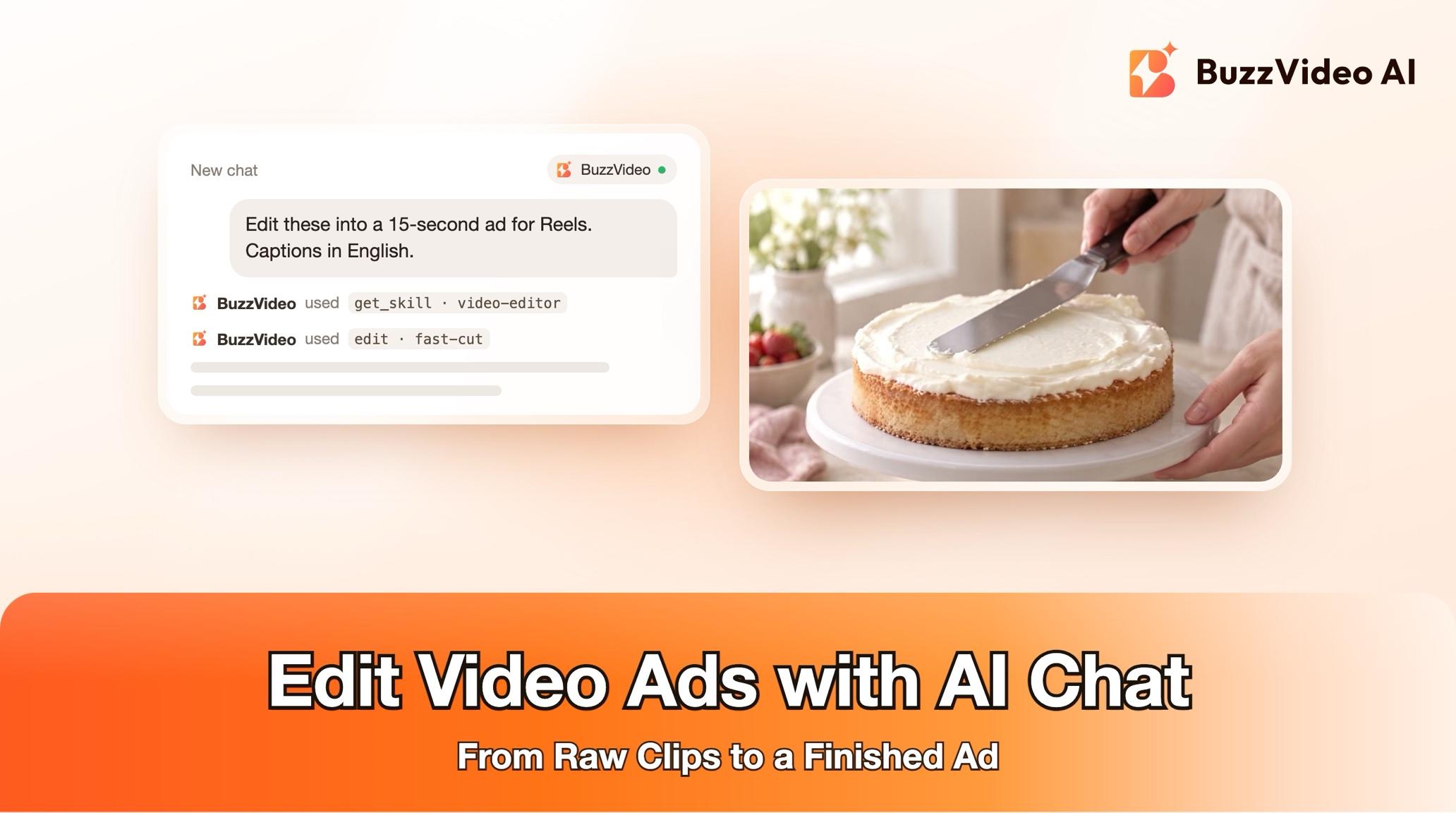
With BuzzVideo MCP connected, the chat follows BuzzVideo's Video editor guide. It works in three modes — assemble AI shots, edit your own footage, or mix both — shows the plan and a credit quote before generating anything, and reviews the cut frame by frame before delivering. Editing your own footage costs 0 credits.
What can an AI video editor in your chat do?
It turns clips into one finished video in a chosen style: cuts, camera moves, speed ramps, word-by-word captions, voiceover and loudness. It can also fill gaps in your footage with AI shots, such as a missing hook or a close-up.
| Mode | You bring | Credits |
|---|---|---|
| 1 · Assemble | BuzzVideo-generated shots | Only for the shots and voiceover |
| 2 · Edit your footage | Your own clips | 0 — cutting and captions are free |
| 3 · Hybrid | Your clips, plus AI shots for the gaps | Only for the AI shots |
Try it: connect BuzzVideo to your AI chat once, then send your clips and pick a style. Connect BuzzVideo MCP →
What do you need before you start?
- A BuzzVideo account. MCP works on every plan; AI shots need video, which starts on Starter (pricing).
- BuzzVideo MCP connected to ChatGPT, Claude or another MCP client — see how to use BuzzVideo MCP in ChatGPT and Claude.
- Your clips (or a brief for AI shots), and where the video will be posted.
- Music you have rights to, if you want music. BuzzVideo can't generate music.
- To render the final file: an AI app that can run commands on your computer, with ffmpeg installed.
What if your chat can't run ffmpeg?
ffmpeg is the free command-line tool that does the cutting, captioning and loudness work. The guide runs it on your computer, so rendering only works in an AI app that can run commands there — a coding agent such as Claude Code, or a desktop chat app with a terminal tool connected. A standard ChatGPT or Claude web chat can't run commands on your computer.
The guide says so up front rather than pretending. In that case it still generates any AI shots you approved and delivers an edit plan — a shot list with in and out points, captions and music cues — that you can follow in your own editor. Mode 2 also works best with a speech-to-text tool for cutting filler words; without one, it cuts by silence detection and by watching frames, and tells you.
How do you edit a video with AI step by step?
Step 1 — Send your clips and choose a style
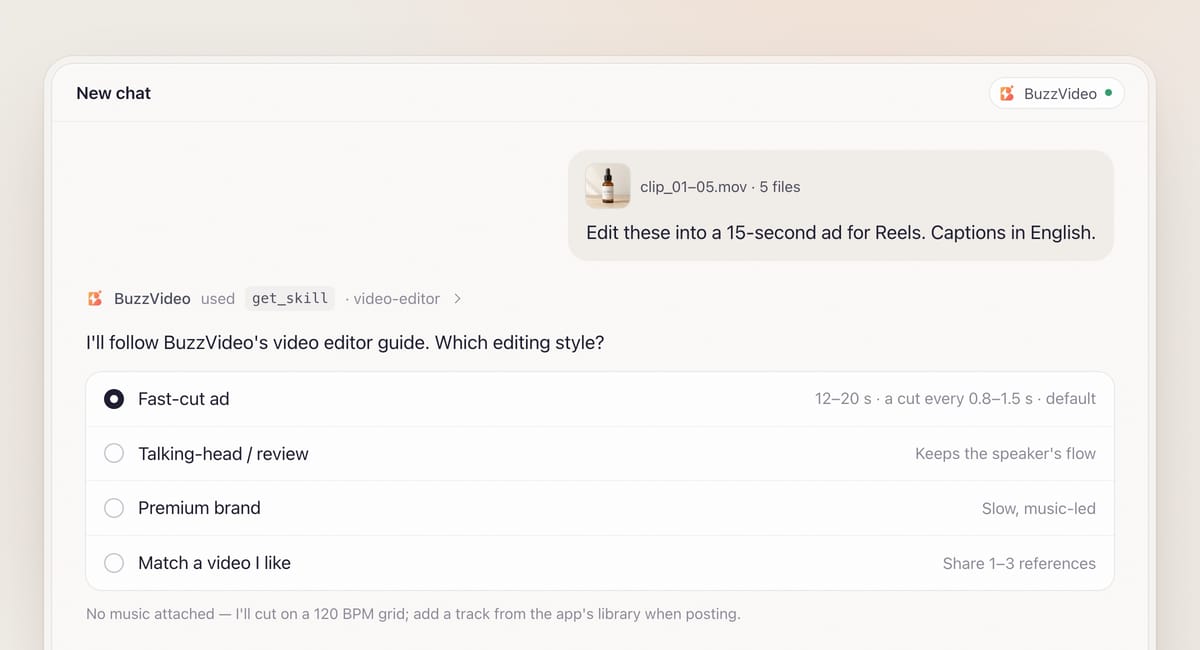
Attach your clips and say where the video will run. The chat loads the video editor guide (get_skill) and asks in one round: the mode, the editing style, and the format — ratio (default 9:16), length (default 15 s for fast-cut ads), language and sound. If you haven't named a style, it must ask. You can pick a preset or share 1–3 reference videos whose editing you like.
If you want music and don't have a track, it tells you before editing: the main file is cut on a stated beat grid with real sound and effects only, and you add a track from the platform's in-app library when posting.
Step 2 — It studies your footage and confirms claims
Every file is inspected and phone footage is set upright. Contact sheets show each clip; with speech, a transcript marks filler words, false starts, retakes and long pauses. The guide lists every usable segment, picks a hook where the product stays in frame for the whole first second, and lists what's missing for the chosen style — no hook, no close-up, no end card. It also lists the brand name and every claim it read on the pack or in the footage for you to confirm.
Step 3 — Approve the edit plan and the quote
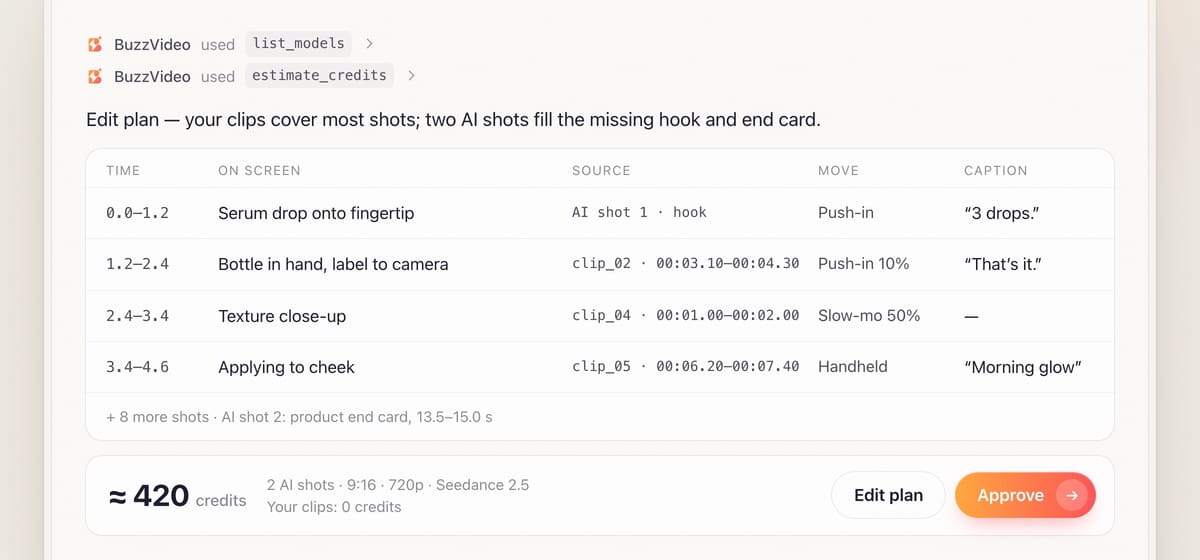
You get a shot table: time range, what's on screen, the source (your clip with in and out points, or an AI shot to generate), the camera move or speed change, the voiceover line and the caption. If nothing needs generating, it says "0 credits"; otherwise it shows the estimate_credits quote and waits for your approval.
Step 4 — Fill the gaps with AI shots (modes 1 and 3)
AI shots use a clean product reference, and if a person appears in more than one shot, one character image first so they don't change between shots. For voiceover, it picks a voice for your language and asks you to listen to a sample before it is used. Failed tasks are refunded.
Step 5 — Edit, caption and mix
Everything is normalised to one spec (1080×1920 at 30 fps for 9:16), cut on the planned points, with speech cuts on word boundaries and cuts on the beat where the style asks for it. Captions stay in the platform safe area and never cover the product, its label or a face. Loudness is set to about −14 LUFS with a true peak below −1 dB and checked on the encoded file.
Step 6 — Review and deliver
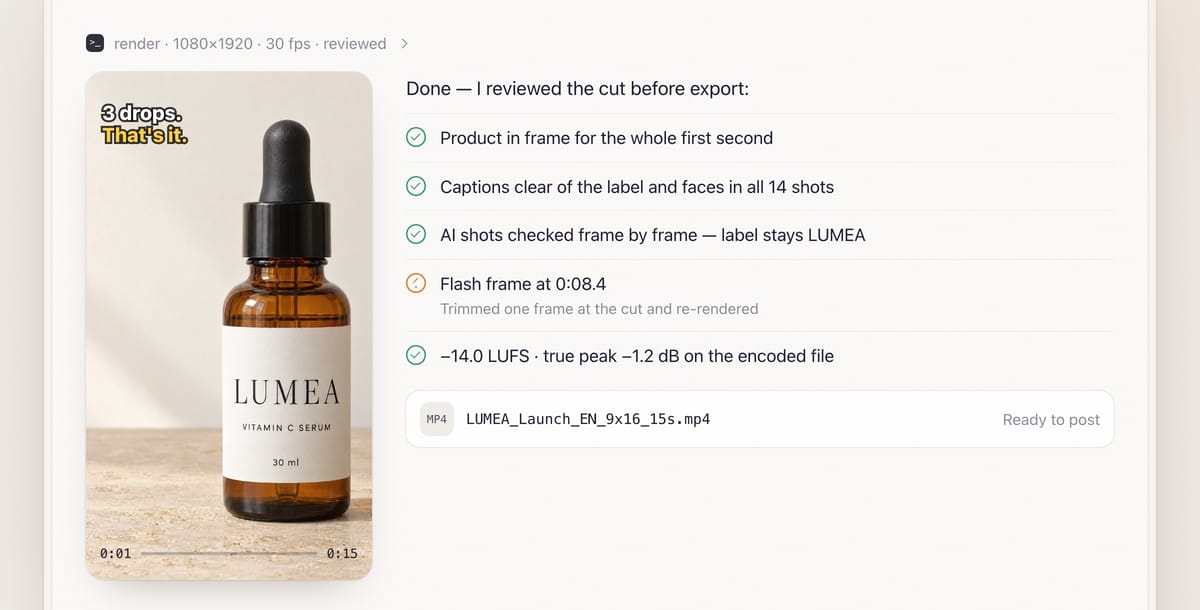
Review is mandatory: frames from every shot and caption state are checked for glitches, captions over the product or faces, black or flash frames and text errors; AI shots are checked frame by frame around motion; duration, resolution, loudness and pacing are compared with the style. It fixes and re-renders up to two more times, and regenerates an AI shot only with your OK. You get a file such as LUMEA_Launch_EN_9x16_15s.mp4, the final shot table, which shots are AI, models and voice used, credits spent and what the review fixed.
Copy-paste prompt
“Edit these clips into a [15]-second [Fast-cut ad] for [Reels], 9:16, captions in [English]: [attach clips]. Fill any missing hook or close-up with AI shots. Music: [I'll add a track in the app / attached track]. Claims we can make: [list]. Show me the edit plan and the credit quote before generating or rendering.”
Which editing style should you choose?
| Style | Best for | What it does |
|---|---|---|
| Fast-cut ad (default) | Reels, TikTok and Shorts ads | 12–20 s, a cut every 0.8–1.5 s on the beat, product in the first second, word-by-word captions, 1–1.5 s CTA |
| Talking-head / review | Founder and creator videos | Keeps the speaker's flow, jump-cuts pauses and filler, B-roll and callouts |
| Premium brand | Brand films, launches | Slow long takes, gentle moves, minimal captions, music-led |
| Beat-synced | Outfit changes, unboxing, compilations | Every cut on the beat or bar |
| Learned from references | Matching a video you like | Measures 1–3 references into a style card you confirm |
Your requested length always wins over the preset; the number of shots scales to it at roughly one cut per 0.8–1.5 seconds. When learning from references, it copies editing grammar only, never the footage, music, logos or text.
What usually goes wrong, and how does the guide prevent it?
| Problem | What viewers notice | What the guide does |
|---|---|---|
| Weak opening | Scroll past in the first second | Hook picked where the product stays in frame the whole first second |
| Captions in the way | Text over the label or a face | Moved per shot; frame shifted down if the product fills it |
| Real and AI shots don't match | "That shot looks fake" | Light colour matching; AI shots checked frame by frame |
| Clicks and loud peaks | Harsh audio on phones | 20 ms fades, limiter, peak verified on the encoded file |
| Placeholder music shipped | Muted or removed post | Placeholder only in a separate file named PLACEHOLDER-MUSIC |
| Unconfirmed claims | A caption you can't back up | Every claim listed for you to confirm first |
How much does it cost?
Editing your own footage is free in BuzzVideo credits. You pay only for what's generated. As a rough example, a hybrid edit that adds two 5-second Seedance 2.5 shots at 720p to your clips comes to about 420 credits (209 per shot) — around $3 on Pro billed yearly, plus any voiceover. Seedance 2.0 Fast is about 104 credits per 5-second shot. The guide shows the exact quote before generating; per-model rates are on our pricing page, and BuzzVideo pricing and cost per ad has the full math.
Which BuzzVideo guide should you use instead?
| You want… | Use this guide |
|---|---|
| One finished video from clips | Video editor (this one) |
| Many short clips from one long recording | Long to shorts |
| To copy one specific viral video's edit | Viral remix |
| A breakdown of a video before matching its style | Video understand |
Step-by-step guides: Long to shorts · Viral remix · Video understand
You don't need to name the guide: describe what you want, and the chat picks the matching one.
Does an edit with AI shots need an AI label?
If the ad shows AI-generated people or uses an AI voice, usually yes. TikTok requires the AI-generated content disclaimer for such ads (TikTok ad policy), and Meta labels ads made or significantly edited with generative AI (Meta).
Have clips waiting on your phone? Connect BuzzVideo to your AI chat and turn them into a finished ad.
FAQs
Can ChatGPT or Claude edit video on their own?
Not in a standard web chat. They plan and check the edit; the cutting runs with ffmpeg on your computer, which needs an AI app that can run commands there. Without that, you get the AI shots and an edit plan.
Is editing my own footage free?
Yes, in BuzzVideo credits. The guide says "0 credits" when nothing is generated. AI shots and voiceover are quoted first.
Can it add music?
Only music you supply or have rights to — BuzzVideo can't generate music. Without a track, the main file is cut on a stated BPM so you can add a sound from the platform's library when posting.
Can it match the editing of a video I like?
Yes. Share 1–3 reference videos; it measures cuts, pacing, captions and sound into a style card you confirm, then edits to match without copying the reference's content.
Can it remove filler words and pauses?
Yes, in mode 2. With a speech-to-text tool it cuts filler words, false starts and retakes on word boundaries; without one, it cuts by silence detection and says so.
What do I get at the end?
A ready-to-post MP4, the final shot table, which shots are AI-generated, models and voice used, credits spent, what the review caught and fixed, and what you still need to confirm.
Last verified: November 2, 2026, against our live pricing and product pages.
Next reads: How to use BuzzVideo MCP in ChatGPT and Claude · Product demo videos from photos · Storyboard to video: consistent ads

About the author
Monica
Product Manager
As a Product Manager at BuzzVideo AI, I work with marketers and growth teams on AI ad workflows—from brief to shippable creatives. I write about practical product workflows, model choices, and how teams turn product pages into ads that feel native on Meta and TikTok.