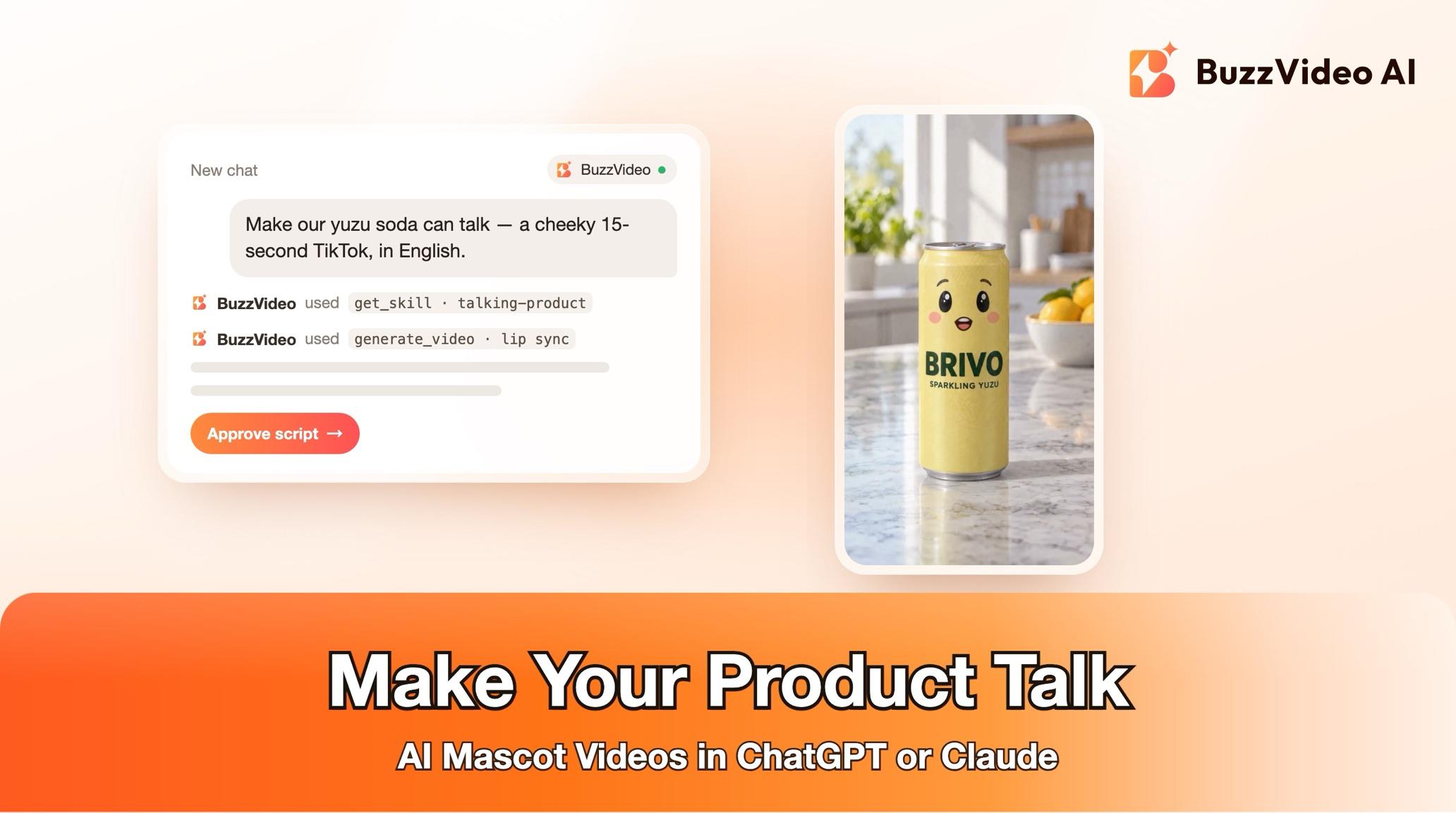
How to Make Your Product Talk: An AI Mascot Video in ChatGPT or Claude
Give your bottle, can or gadget a face and a voice: make a talking product video inside ChatGPT or Claude with BuzzVideo MCP, from character sheet to edit.
To make a talking product video with AI, give your real product a simple face placed away from its logo and label, lock that design in a character sheet, write a few short first-person lines for it, pick a voice, and generate close-up shots where the mouth moves with each line. Then cut them into a 10–30 second vertical clip that ends on a clean product shot.
With BuzzVideo MCP connected, ChatGPT, Claude or another MCP client can do all of this for you. The chat loads BuzzVideo's Talking product guide, agrees a "no-face zone" so your label stays readable, and shows the character sheet, script, voice and credit quote for approval before generating.
What is a talking product video?
A talking product video turns the product itself into the presenter: a can, bottle or snack bag gets eyes, a mouth and a personality, and sells itself in its own voice. Unlike an AI avatar holding your product, there is no human on screen, so the product stays the hero. Brands use it for playful Reels, TikTok and Shorts ads and recurring mascot content.
| Part | Guide default |
|---|---|
| Length | 10–30 seconds (15–20 s for Reels / TikTok by default) |
| Format | Vertical 9:16 |
| Character style | Photoreal product with a subtle cartoon face on the packaging |
| Other styles | Full 3D character with arms and legs, or a 2D cartoon look |
| Personality | Cheerful and a bit cheeky |
| Editing style | Fast-cut ad |
Try it: connect BuzzVideo to your AI chat, attach a front-facing product photo and ask it to make your product talk. Connect BuzzVideo MCP →
What do you need before you start?
- A BuzzVideo plan with video. Video starts on Starter; Seedance 2.0 and 2.5 need Pro or Ultra (pricing).
- BuzzVideo MCP connected: see how to use BuzzVideo MCP in ChatGPT and Claude.
- A clean, front-facing product photo, plus side or back views if the label wraps around. Under about 1500 px, the guide first makes a 2K clean front view.
- One to three selling points the product is allowed to say about itself.
- Any mascot rules your brand already has, so the new character doesn't clash with them.
How do you make a talking product video step by step?
Step 1 — Ask, and mark the no-face zone
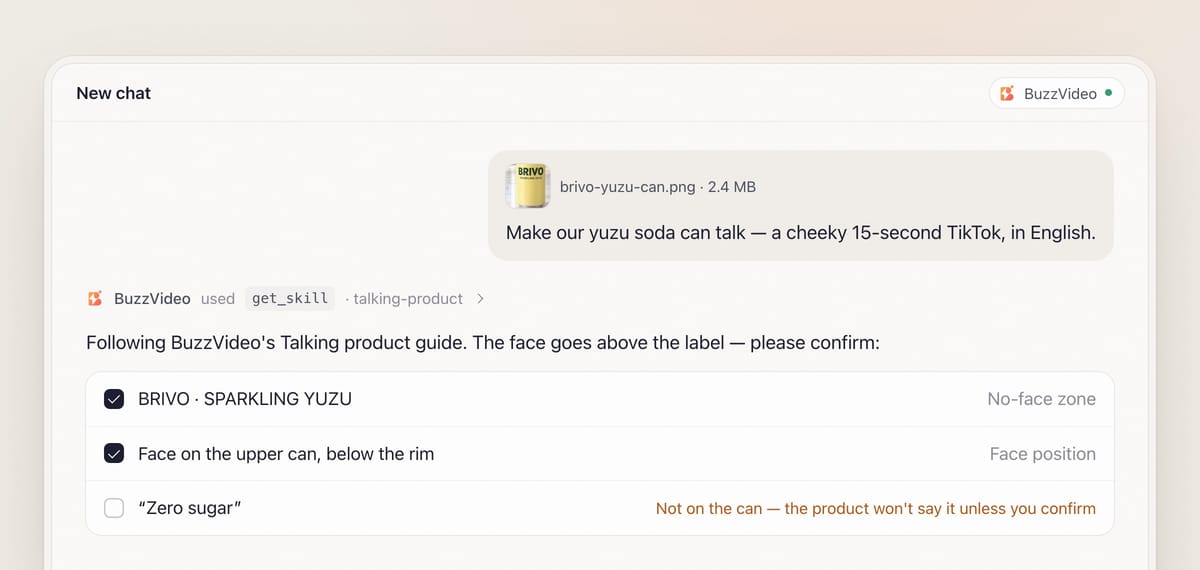
Attach the photo and describe the video. The chat loads the guide (list_skills, then get_skill) and asks one round of questions with defaults: the product and its selling points, the character style and personality, the language and voice, and the editing style.
It then writes a packaging description (shape, colours, logo position, label text) and marks the no-face zone: the logo, the product name and any key claim. The face has to sit outside it, for example on the cap, the shoulder of a bottle, a blank side panel or above the label. If there is no free space, it proposes small eyes on the cap and a mouth just above the label.
Step 2 — Confirm what the product will say
Everything the character says about itself is a claim: "no sugar", "lasts 24 hours", an ingredient, a number. The guide lists each one exactly as read from the pack or product page and asks you to confirm or correct it. If a line is hard to read, it asks instead of guessing.
Step 3 — Approve the character sheet
Next, the guide generates a character sheet in 9:16 so a tall product isn't tiny: a front view, a three-quarter view, three expressions (smile, surprised, talking with the mouth open) and a close-up of the face area for the talking shots. The prompts describe the eyes, eyebrows, mouth and cheeks, where the face sits, and that the packaging must match the reference with the label fully readable. You can adjust once (bigger eyes, a cuter mouth, move the face), and the approved front view becomes the anchor.
Step 4 — Approve the script, the voice and the quote
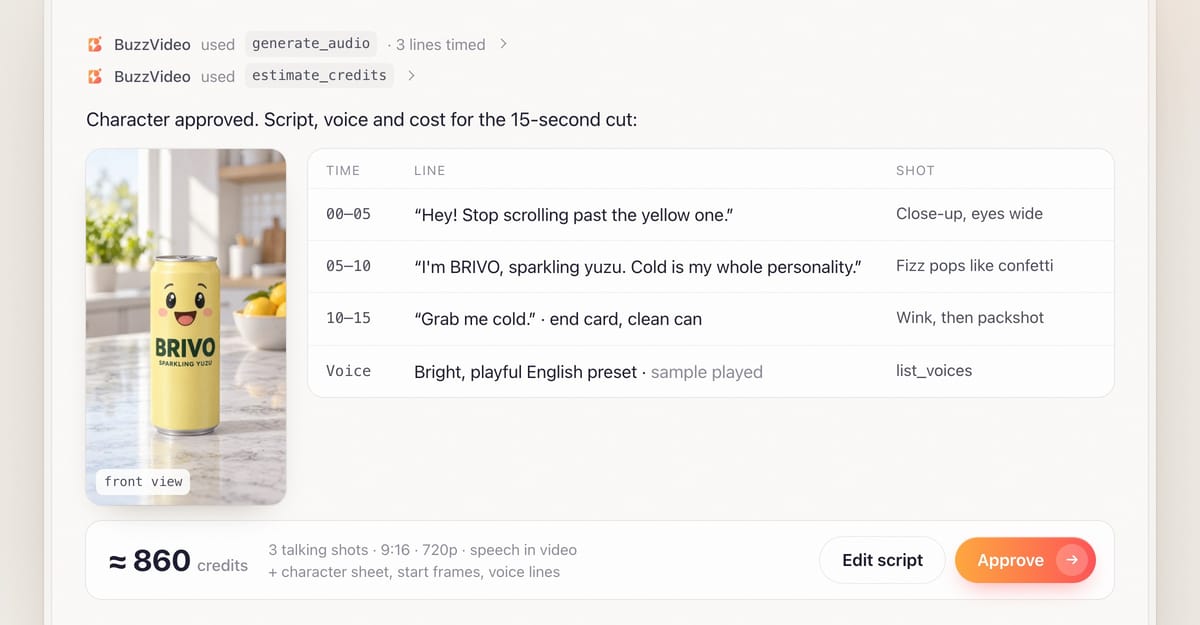
The script is sized to the length: about 2 English words per second for a lively voice, leaving 1–1.5 seconds for the end card, so a 10-second video is roughly 15–17 words in two lines. Lines are short and first person: a hook in the first 1–2 seconds, who I am, the confirmed selling points, a small visual gag (pouring itself, spraying, jumping into a bag), and a call to action. Each line gets a shot with setting, action, framing and expression.
For the voice, you get 2–3 matching options from list_voices and can play each sample for free. Most preset voices are English; you can also use your own voice via clone_voice (English only, and only a voice you have rights to). The chosen voice then generates each line, timed before any shots, with the credit quote shown for approval.
Step 5 — Generate talking shots from fixed start frames
You choose how the mouth moves. Speech in the video gives the best sync: the video model generates the line and lip movement together, with the generated line as reference audio so every shot sounds alike. Voiceover overlay gives the most control: shots are made with a talking-rhythm mouth and the voice is laid on in the edit.
One tested detail: words alone don't hold the framing, because models drift back to a wide product shot. So for each talking shot the guide first generates a 9:16 medium close-up with the face about 40% of the frame width, checks the logo against the anchor, and animates that exact image. Failed tasks are refunded, with one retry offered.
Step 6 — Check, edit and review
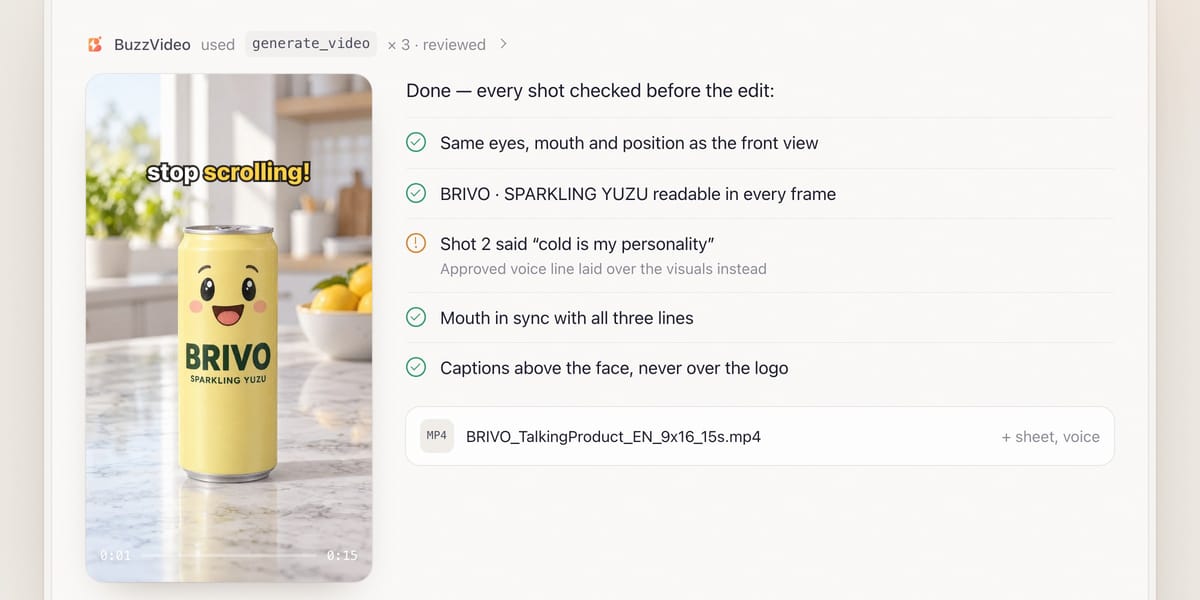
Every shot is checked for face design and position, a readable label and lip sync. Spoken shots are transcribed and compared with the script, and you're asked to confirm the brand name sounds right. If the model garbles a line, the visuals are kept and the approved line is laid over them, adjusted by up to ±10% to match the mouth.
The edit opens on the face with the hook, adds word-by-word captions above the face (never over the logo, key graphic or claims), leaves a small pause before the punchline, and ends on the clean product photo with no face plus your call to action. A mandatory review runs before you receive, for example, BRIVO_TalkingProduct_EN_9x16_15s.mp4, the character sheet, the voice lines and the raw shots.
Copy-paste prompt
“Make my [product] talk in a [15]-second video for [TikTok], 9:16. Style: [photoreal with a subtle cartoon face], personality [cheerful and a bit cheeky]. It should say: [selling point 1], [selling point 2]. Language: [English]. Keep the logo and product name readable. Show me the claims list, the character sheet, the script with voice options and the credit quote before generating.”
How should a talking product script be written?
| Beat | Time | What it does | Example line |
|---|---|---|---|
| Hook | 0–2 s | A joke, complaint or surprise | "Hey! Stop scrolling past the yellow one." |
| Who I am | 2–5 s | Name and category, first person | "I'm BRIVO, sparkling yuzu." |
| Selling point | 5–9 s | One confirmed claim | "Real yuzu juice, and that's the whole tingle." |
| Gag | 9–12 s | A visual moment | Fizz pops out of the can like confetti |
| Call to action | 12–15 s | One next step on the end card | "Grab me cold." |
Keep each line to one breath. If a line runs long, the guide cuts words and regenerates it rather than trimming the audio file.
What usually goes wrong, and how does the guide prevent it?
| Problem | What viewers notice | What the guide does |
|---|---|---|
| Face over the logo | Can't tell what the brand is | No-face zone agreed before any design |
| Face changes | Different eyes or mouth per shot | One approved character sheet; a face close-up used as an extra reference |
| Wide, tiny product | Face too small to read the mouth | A fixed medium close-up start frame for every talking shot |
| Garbled speech | Words don't match the script | Speech-to-text check; approved voice line laid over if needed |
| Melting label | Text redrawn wrong in a push-in | Label lines quoted exactly; clean product photo on the end card |
| Unapproved claims | The product says something you can't prove | Every spoken claim confirmed with you first |
How much does a talking product video cost?
You pay in credits and approve the quote first. As a rough example: a six-image character sheet and three start frames on Nano Banana Pro come to about 225 credits, three 5-second Seedance 2.5 talking shots at 720p about 627, and the voice lines on Seed Audio 1.0 only a few credits: roughly 860 credits, or about $6 on Pro billed yearly. Choosing voiceover overlay on a cheaper video model lowers the total. Rates are on our pricing page; see also BuzzVideo pricing and cost per ad.
Which BuzzVideo guide should you use instead?
| You want… | Use this guide |
|---|---|
| The product itself talking as a character | Talking product (this one) |
| A human presenter talking about the product | UGC product review |
| A multi-episode story with recurring characters | Short drama |
| A normal product ad without a character | Product ad |
Step-by-step guides: UGC product review · Short drama · Product ad
For a human presenter workflow, see our talking avatar ads workflow.
Do talking product ads need an AI label?
Plan on it, since the voice and the animation are AI-generated. TikTok allows AI-generated ad content only when it is disclosed, with its AIGC label or your own clear disclaimer (TikTok ad policy), and Meta shows an "AI info" label on ads made or significantly edited with generative AI, including some made with third-party AI tools (Meta).
Ready to give your product a voice? Connect BuzzVideo to your AI chat and send a product photo.
FAQs
Will the face cover my logo?
No. The logo, product name and key claims are marked as a no-face zone before the character is designed, and review checks every frame for a face that covers or warps them.
Can the product have arms and legs?
Yes. Besides the default subtle face on the packaging, you can choose a full 3D animated character with arms and legs, or a 2D cartoon look.
Can I use my own voice?
Yes, through clone_voice, for English, and only for your own voice or one you have rights to. Otherwise you pick from preset voices and play samples for free.
Can I reuse the character in later videos?
Yes. The approved character sheet is saved with your assets, so the same face design can anchor future videos. For a story with several recurring characters, use the Short drama guide.
Last verified: November 2, 2026, against our live pricing and product pages.
Next reads: How to use BuzzVideo MCP in ChatGPT and Claude · Talking avatar ads workflow · Ad variants sprint playbook

About the author
Monica
Product Manager
As a Product Manager at BuzzVideo AI, I work with marketers and growth teams on AI ad workflows—from brief to shippable creatives. I write about practical product workflows, model choices, and how teams turn product pages into ads that feel native on Meta and TikTok.