How to Analyse a Video Ad Shot by Shot in ChatGPT or Claude
Step-by-step: turn any video ad into a shot-by-shot timeline, transcript and style card inside ChatGPT or Claude with BuzzVideo MCP—no credits spent.
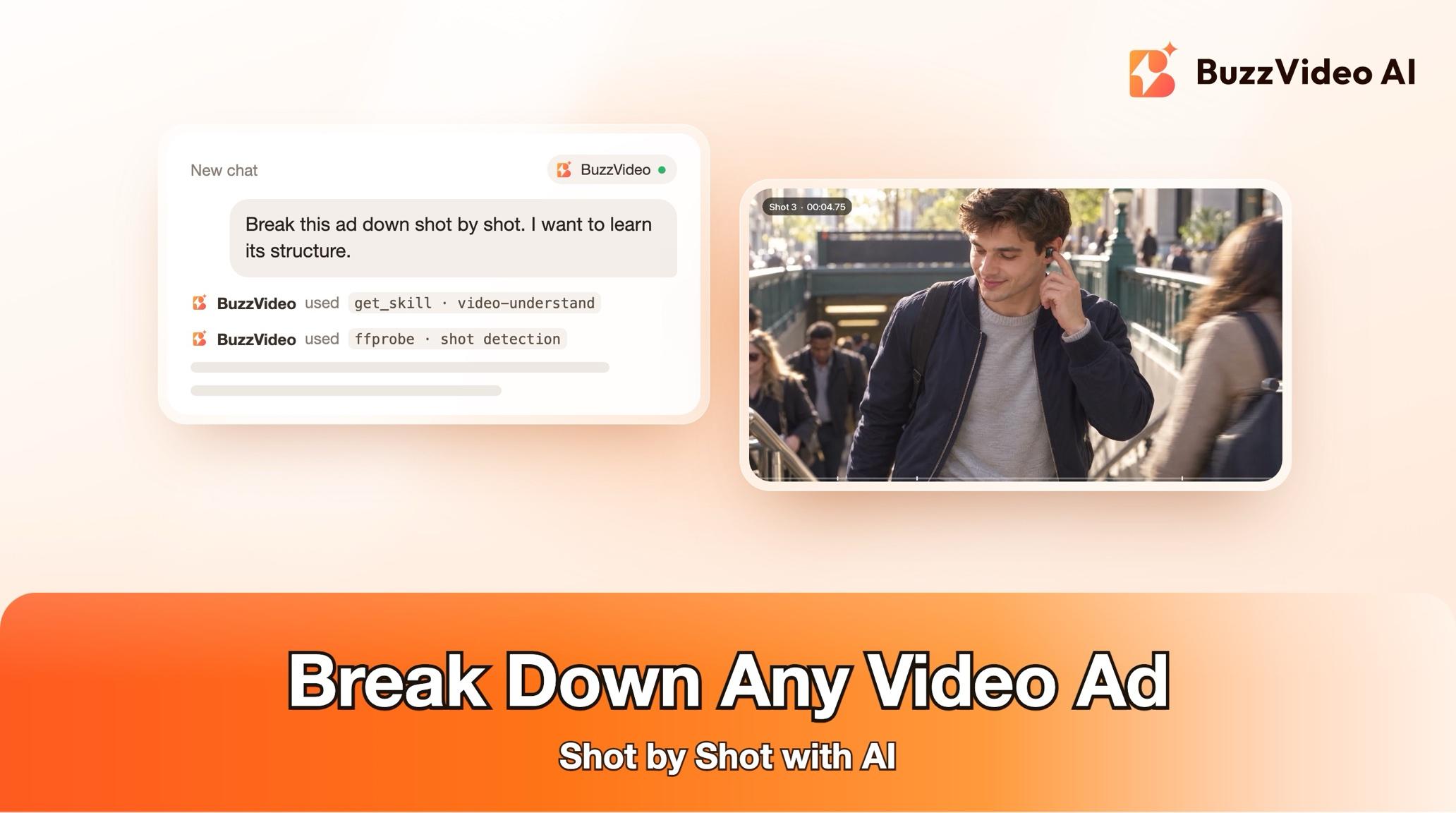
To break down a video ad shot by shot with AI, detect every cut, describe each shot (timecode, shot size, camera move, on-screen text and its role in the story), transcribe the voiceover with timestamps, and sum it up as a short style card: pacing, hook, structure, captions and sound. That breakdown tells you why an ad works and gives you a blueprint to make your own version without copying it.
With BuzzVideo MCP you can do this from ChatGPT or Claude. The chat follows BuzzVideo's Video understand guide: it checks the setup, finds the cuts, describes every shot, checks every row against the frames, and hands you a shot table, transcript and style card. It makes nothing new, so it spends no BuzzVideo credits.
What is a shot-by-shot video breakdown?
A shot-by-shot breakdown (also called a reverse-engineered shot list) lists every cut in a video with what happens on screen, what is said and how it is edited. Marketers use it to learn a competitor's or a viral video's structure before remaking it for their own product.
| Output | What's in it |
|---|---|
| Shot table | #, in, out, length, shot size, move or speed, on screen, on-screen text, voiceover line, transition, story role |
| Style card | Format, pacing, hook, structure, camera grammar, captions, sound, look, ending, why it works, weaknesses |
| Caption log (full depth) | Every caption with timing, exact text, highlight colour, position, and whether it covers a face or the product |
| Sound map (full depth) | Voice lines, gaps, music tempo and beat grid, sound effects, loudness |
| Claims to confirm | Every brand name, claim, price and offer read or heard, with uncertainty marks |
Try it: connect BuzzVideo to your AI chat once, then share a video and ask how it is made. Connect BuzzVideo MCP →
What do you need before you start?
- A BuzzVideo account on any plan. MCP is included on every plan, including Free (pricing); this guide uses no credits.
- BuzzVideo MCP connected to ChatGPT, Claude or another MCP client — see how to use BuzzVideo MCP in ChatGPT and Claude.
- The video itself: a local file, a file you upload, or a link you can download. A social link that won't download needs a file or a screen recording instead.
- For the full, frame-accurate version: an AI app that can run commands on your computer, with ffmpeg installed. See the next section.
Do you need ffmpeg, and what if your chat can't run commands?
The precise version of this guide measures the video with ffmpeg and ffprobe, free command-line video tools: it finds cuts from per-frame scene scores, extracts frames for contact sheets and measures loudness. That only works when your AI app can run commands on your own computer — for example a coding agent such as Claude Code, or a desktop chat app with a terminal tool connected. A standard ChatGPT or Claude web chat can't run commands on your computer.
The guide is honest about the fallback. Without local commands, if your chat can view images, it works from screenshots every 1–2 seconds or the frames it can see in an uploaded file, and it says that timecodes are approximate and there is no audio analysis. If it can't view images either, it asks you to describe the video and offers a template. For a transcript it needs a speech-to-text tool with word timestamps; it asks before installing one (the default is faster-whisper), and if you decline it writes "no transcript" and uses the on-screen text.
How do you break down a video step by step?
Step 1 — Share the video and check the setup
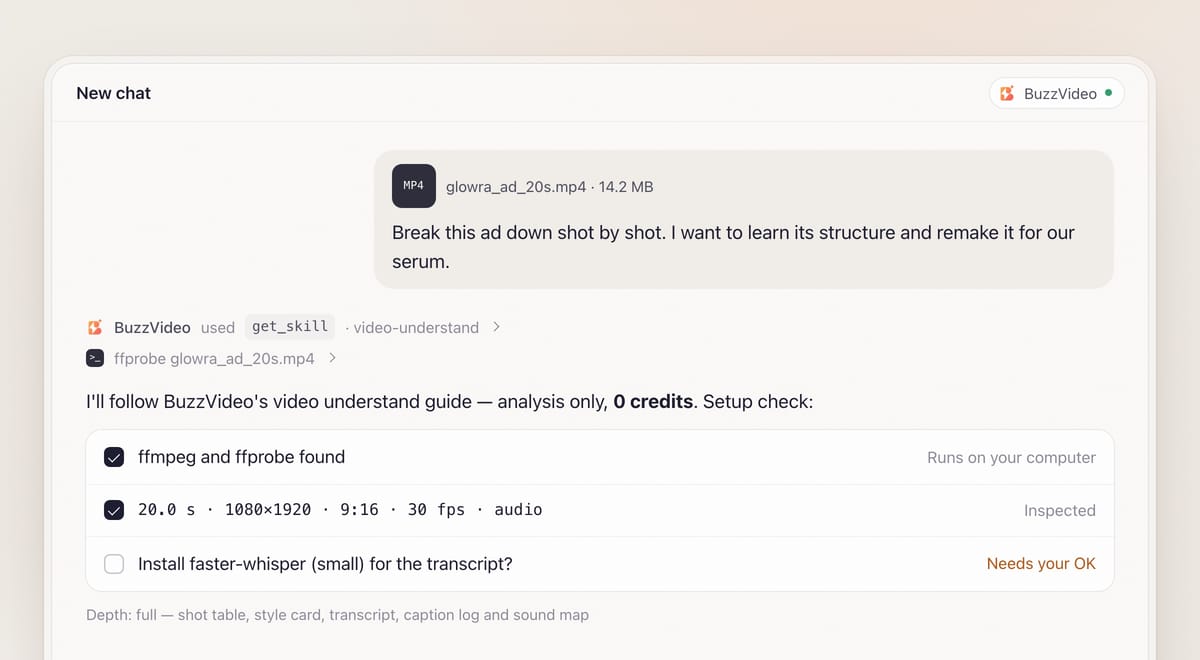
Attach or point to the video and say why you want the breakdown. When BuzzVideo MCP is connected, the chat loads the video understand guide (get_skill) and asks the rest in one round: the purpose (default: learn its structure and editing style to remake it for your product) and the depth — quick (shot table and style card) or full (adds transcript, caption log and sound map). Full is the default for videos under 90 seconds.
It then checks that ffmpeg and ffprobe are available and sets up one project folder with source, frames, sheets, audio and analysis subfolders. First it inspects the file: duration, resolution, ratio, frame rate, rotation and loudness. Platform marks such as watermarks or letterboxing are noted and kept out of the style.
Step 2 — Find every cut
Scene-change detection gives a score for every frame. The guide takes clear cuts above 0.3, then inspects 0.1–0.3 for soft cuts, flashes and whip pans, and merges candidates less than three frames apart. A digital punch-in on the same clip gets its own row but is not counted as a new shot. It builds an overview contact sheet and a dense sheet around every candidate, then corrects the list by eye: false cuts from a light change are dropped, match cuts hidden in a whip pan are added.
Step 3 — Describe every shot
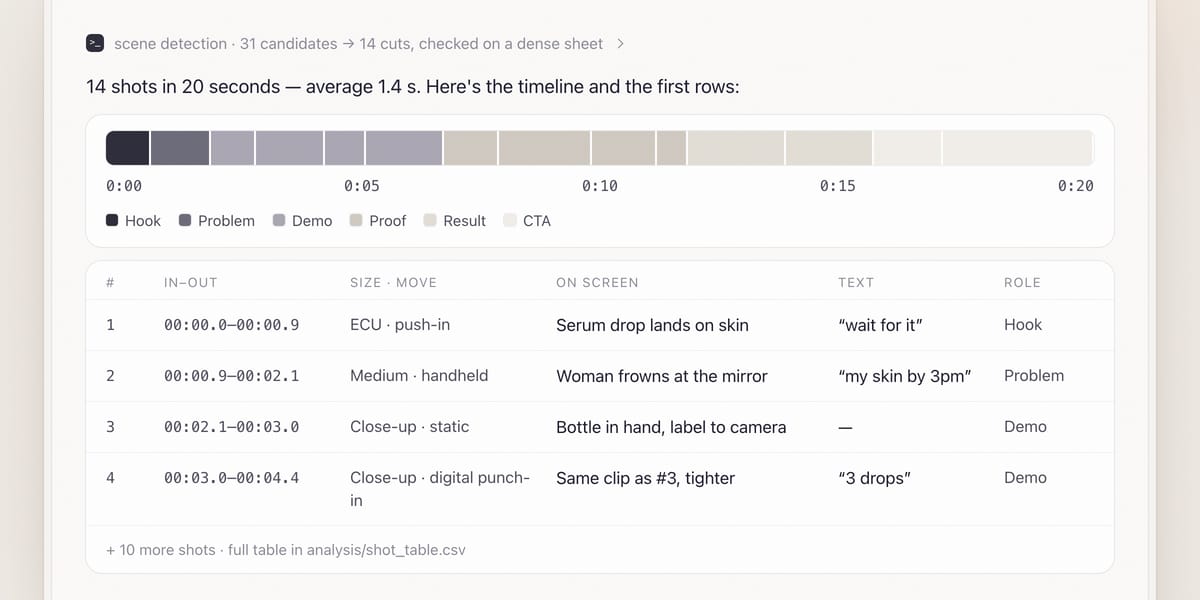
For each shot, from its frames: in and out times, shot size, camera move, speed, what happens and whether the product is visible, the transition out, the exact on-screen text with position and colour (and whether it covers a face or the product), and the story role — hook, problem, demo, proof, result, offer, CTA or end card. It also flags shots that reuse the same footage, and shots where the product or person looks different from the rest, which is common when real and AI footage are mixed.
Step 4 — Map the sound
The voiceover is transcribed with word timestamps and aligned to shots, with voice type, language, words per second and gaps. For strong accents, dialects and brand names, where speech-to-text often gets words wrong, burnt-in captions are treated as the wording and both raw and corrected lines are shown. Music is described by tempo and energy and whether cuts land on beats — never identified or reused. If no audio tool is available, the tempo is labelled "estimated".
Step 5 — Review, then get the style card
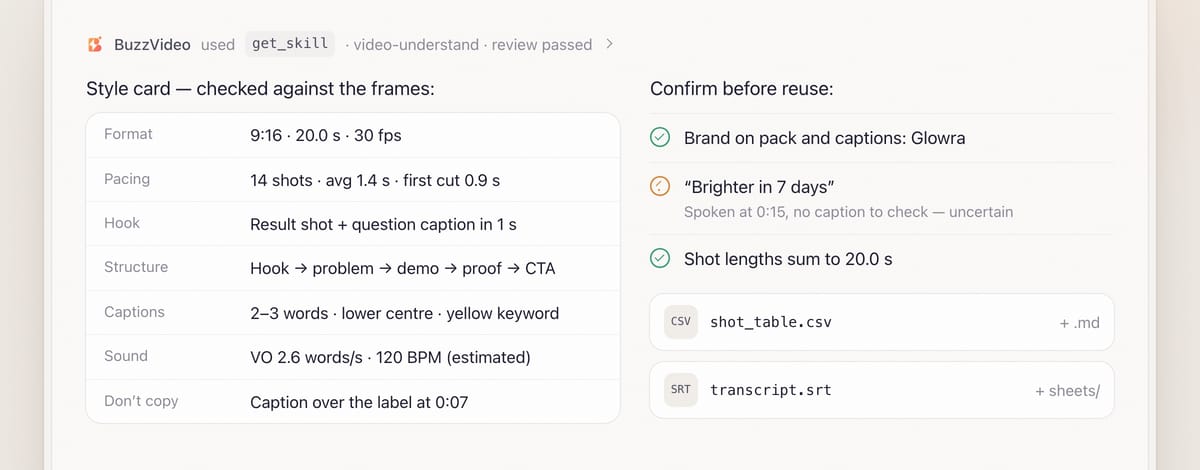
Review is mandatory. The chat checks every row of the shot table against its frames and every cut against the dense sheet, confirms that shot lengths add up to the duration within one frame, and spot-checks the transcript against the audio at three random points. Only then does it deliver the shot table (Markdown and CSV), the style card, the transcript and the contact sheets, with their paths.
Copy-paste prompt
“Break down this video ad shot by shot: [file or link]. Purpose: [learn its structure to remake it for my product]. Depth: [full]. Give me the shot table with timecodes, the transcript, a caption log and a style card with pacing, hook and structure. List every brand name, claim and price you read or hear so I can confirm them.”
What goes on a style card?
| Field | Example from a 20-second ad |
|---|---|
| Format | 9:16 · 20.0 s · 30 fps |
| Pacing | 14 shots · average 1.4 s (0.6–3.1 s) · first cut at 0.9 s · 3 cuts in the first 3 s |
| Hook | Result shot in the first second, caption asks a question |
| Structure | Hook 0–2 s → problem 2–5 s → demo 5–13 s → proof 13–17 s → CTA 17–20 s |
| Captions | 2–3 words, centre-lower, yellow highlight on keywords, pop-in |
| Sound | Voiceover about 2.6 words/s · 120 BPM (estimated) · cuts on the beat |
| Don't copy | Caption over the label at 0:07; product shape changes at 0:12 |
The card is short and numeric on purpose, so the next guide can follow it. The "Don't copy" line matters: it lists the reference's weaknesses so a remake doesn't repeat them.
What usually goes wrong, and how does the guide prevent it?
| Problem | What it causes | What the guide does |
|---|---|---|
| Missed soft cuts | Wrong shot count and pacing | Inspects scores 0.1–0.3 on a dense sheet |
| False cuts | Caption pops counted as shots | Every cut confirmed by eye |
| Misheard brand or dialect | Wrong words in your copy | Captions used as wording; uncertain lines marked |
| Blurry text guessed | A claim the ad never made | Uncertain text marked, never guessed |
| Timings that don't add up | A broken remake plan | Shot lengths must sum to the duration within one frame |
| Copying the reference | Copyright and brand risk | Structure and grammar only — never footage, music, logos, faces or exact text |
How much does a video breakdown cost?
Nothing in BuzzVideo credits. The guide analyses only and does not generate anything. If you later want something made from the analysis, it hands over to the right guide, which shows a plan and an estimate_credits quote and waits for your approval. Per-model rates for that next step are on our pricing page.
Which BuzzVideo guide should you use next?
| You want… | Use this guide |
|---|---|
| To understand one video | Video understand (this one) |
| To remake the ad for your product | Ad remake |
| The same pacing and moves with a new subject | Viral remix |
| To edit your own clips in this style | Video editor (pass the style card) |
| To translate it | Ad localizer (pass the transcript and on-screen text) |
| New hooks | Ad hook variants |
Step-by-step guides: Ad remake · Viral remix · Ad hook variants
At the end of the breakdown the chat offers the next step and loads that guide for you.
Have an ad you want to understand? Connect BuzzVideo to your AI chat and share the file.
FAQs
Does it work in a normal ChatGPT or Claude web chat?
Partly. Without the ability to run commands on your computer, it works from frames or screenshots it can see, with approximate timecodes and no audio analysis. For frame-accurate cuts and a transcript, use an AI app that can run ffmpeg on your machine.
Does analysing a video use credits?
No. Video understand makes nothing new and spends no BuzzVideo credits.
Can I analyse a TikTok or Reels link?
Only if it can be downloaded and you are allowed to analyse it. Social links often can't be downloaded; then the guide asks for the file or a screen recording.
Does it handle accents and other languages?
It can, with care. Speech-to-text can get strong accents, dialects and brand names wrong, so burnt-in captions are used as the wording and speech-to-text only for timing, with raw and corrected lines side by side.
Can I reuse the reference's footage or music?
No. The breakdown is for learning structure and editing grammar. A remake must not copy the reference's footage, music, logos, faces or exact text.
What do I get at the end?
The shot table as Markdown and CSV, the style card, the transcript, contact sheets, a chat summary with the reasons it works and the weaknesses not to copy, and a list of claims and text to confirm.
Last verified: November 2, 2026, against our live pricing and product pages.
Next reads: How to use BuzzVideo MCP in ChatGPT and Claude · Storyboard to video: consistent ads · The ad variants sprint playbook

About the author
Monica
Product Manager
As a Product Manager at BuzzVideo AI, I work with marketers and growth teams on AI ad workflows—from brief to shippable creatives. I write about practical product workflows, model choices, and how teams turn product pages into ads that feel native on Meta and TikTok.