How to Resize an Ad to 9:16, 4:5, 1:1 and 16:9 in ChatGPT or Claude
Adapt one finished ad to Reels, Stories, TikTok, feeds and YouTube without changing the creative: subject-following crops, safe zones and rebuilt text.
To resize a video ad for every placement, reframe each shot separately: crop with a window that follows the subject where the product, faces and text fit, use a blurred-background fill where they don't, rebuild text that falls into a platform's blocked zone, and keep the audio and every cut unchanged. With BuzzVideo MCP you can do this from ChatGPT or Claude: the chat follows BuzzVideo's Ad resizer guide, shows you a per-shot plan for each ratio, and only spends credits on anything generated after you approve.
This guide covers each step, the prompt to copy, the safe-zone margins per placement, what it costs (crops are free) and the checks that stop a logo or face from being cut off.
What does resizing an ad for placements mean?
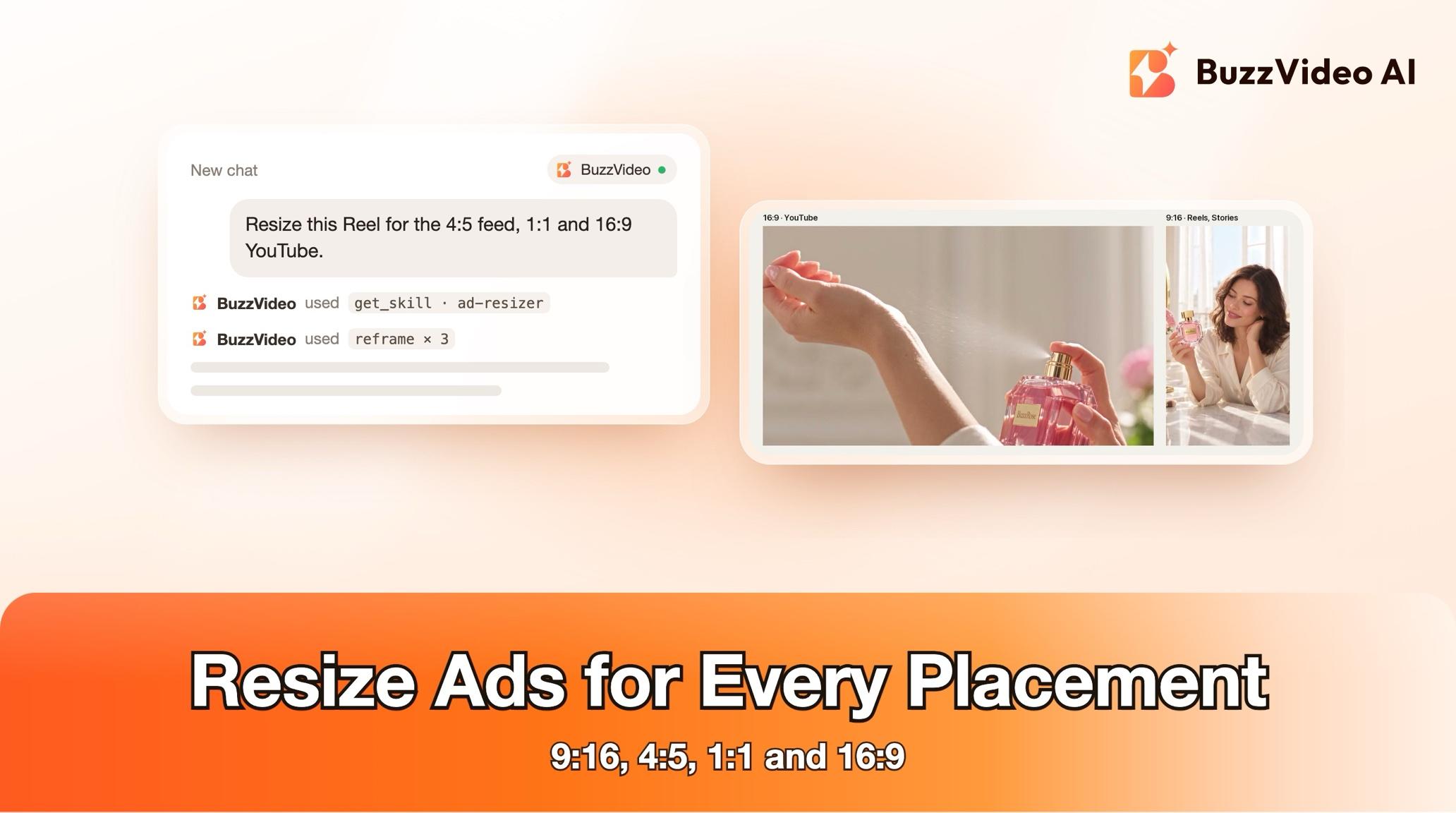
Each placement shows video in a different shape and puts its own buttons, captions and profile names over parts of the frame. Resizing makes one version per shape without changing the creative, so the product, faces and text stay visible and clear of those overlays.
| Ratio | Size | Where it runs |
|---|---|---|
| 9:16 | 1080×1920 | Reels, Stories, TikTok, Shorts |
| 4:5 | 1080×1350 | Instagram and Facebook feed |
| 1:1 | 1080×1080 | Square feed |
| 16:9 | 1920×1080 | YouTube in-stream and web |
Try it: connect BuzzVideo to your AI chat once, then attach an ad and ask for all placements. Connect BuzzVideo MCP →
What do you need before you start?
- A BuzzVideo account. Crops and blurred fills cost no credits; extended images and re-generated shots use credits (pricing).
- BuzzVideo MCP connected to ChatGPT, Claude or another MCP client — see how to use BuzzVideo MCP in ChatGPT and Claude.
- The files — attached in the chat or already in your BuzzVideo assets. A text-free version and the text content help a lot.
- The placements you need. The default is all four: 9:16, 4:5, 1:1 and 16:9.
- An AI chat that can run commands (ffmpeg) for finished video files. Without it, you get a per-shot crop plan, text positions per ratio and any re-generated shots.
How do you resize an ad step by step?
Step 1 — Attach the ad and pick placements
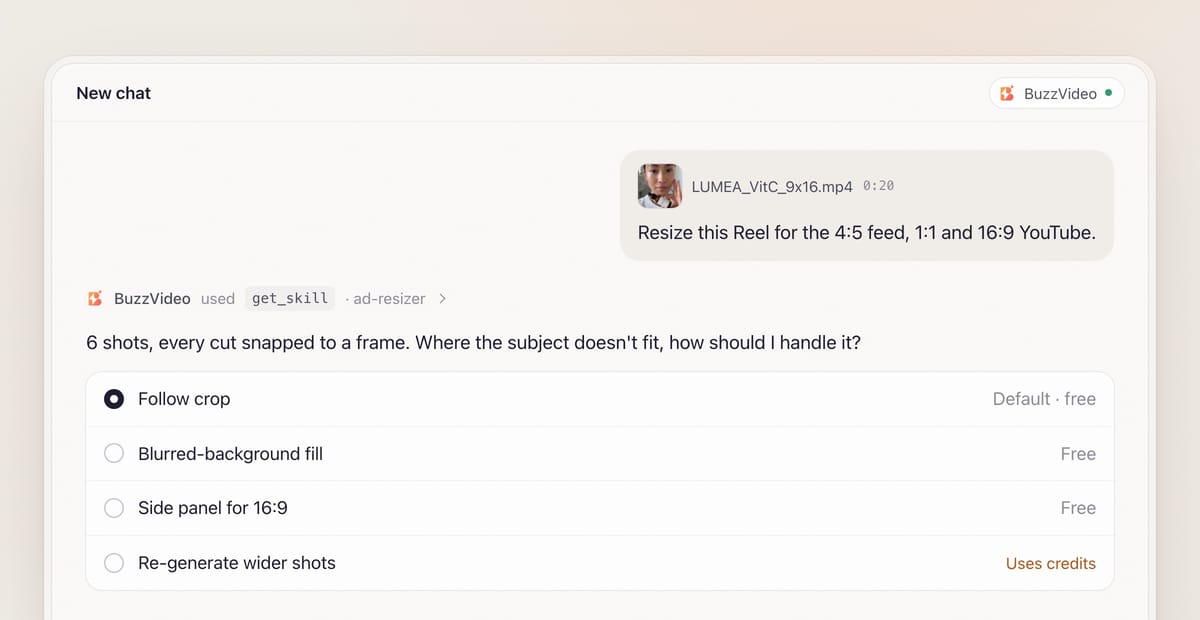
Attach the ad (or point to it in your BuzzVideo assets) and list the placements. When BuzzVideo MCP is connected, the chat looks up BuzzVideo's guides (list_skills) and loads Ad resizer (get_skill). It asks one question with a default: for shots where the subject doesn't fit the new frame, do you want a follow crop (default), a blurred-background fill, a side-panel layout, or re-generated wider shots, which cost credits?
Step 2 — Inspect every shot and confirm the text
The guide breaks the ad into shots and snaps each cut to an exact frame number, because rounded times aren't precise enough—captions often run one to three frames past a cut. For each shot it notes where the subject and every caption sit.
If any text has to be rebuilt—a headline, price, offer or claim—it lists that text as read from the original and asks you to confirm it's still correct. If something is hard to read, it asks.
Step 3 — Approve the per-shot plan
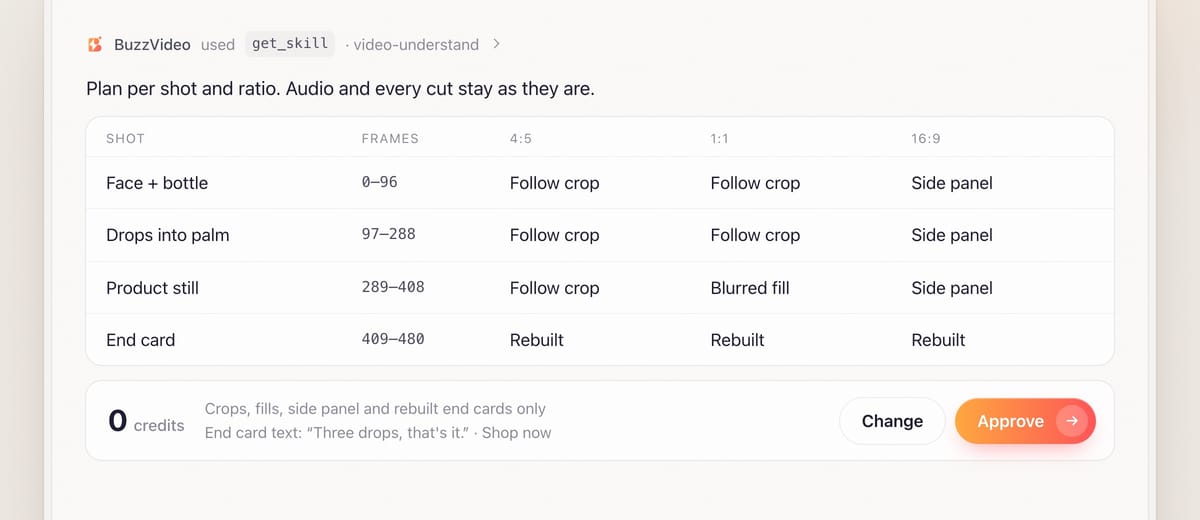
You get a table: every shot down the side, every ratio across the top, and a method in each cell. Methods, from cheapest to most involved:
- Follow crop — the crop window moves smoothly with the subject and resets on each cut. When not everything fits, it keeps eyes and face first, then logo and claim text, then the product label.
- Blurred-background fill — the full frame placed over a blurred, enlarged copy of itself. Never black bars.
- Side panel (9:16 to 16:9) — the vertical video on one side, the headline, confirmed claims and call to action rebuilt large on the other.
- Rebuilt end card — the logo and product cut from the original card, the tagline and button rebuilt per ratio.
- Re-generate (credits) — only for a key shot where nothing else works.
Anything generated is quoted with estimate_credits. If the plan is all crops and fills, the quote is zero.
Step 4 — Render, keeping the audio untouched
If your AI chat can run ffmpeg, only the picture changes: the audio stream is copied as it is, every cut stays, and the duration is verified. Baked-in text that fits inside the new frame and its safe zone is kept; text the crop would cut is covered and rebuilt, off the product and faces.
Still images follow the same idea. They're cropped when everything fits, extended (outpainted) when the new frame is wider or taller—keeping the original pixels and generating only the new area—or re-laid out when a wide banner has to become 9:16.
Step 5 — Review against safe zones and deliver
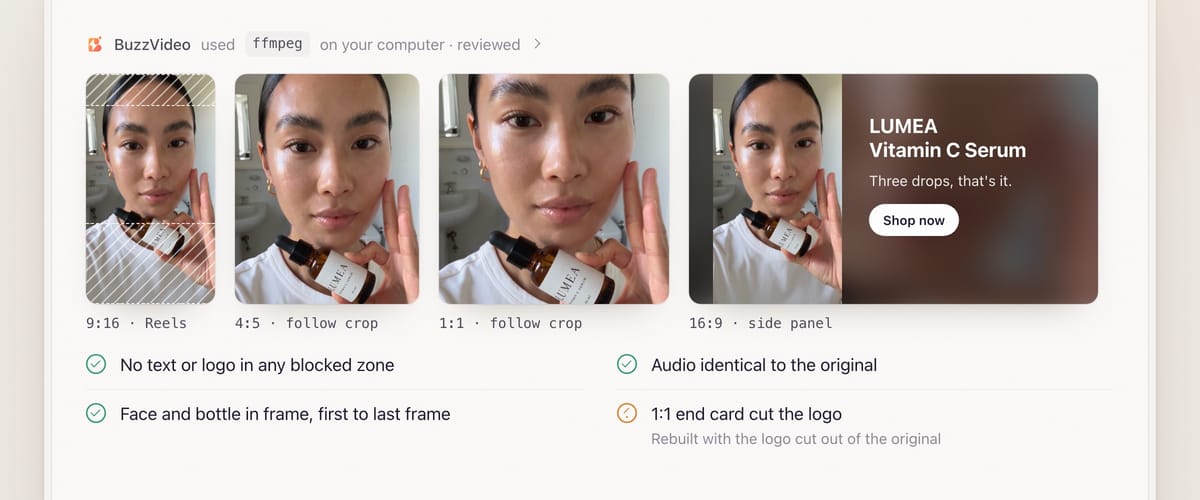
Review is mandatory. A safe-zone guide is laid over sampled frames of every output: no text, logo or call to action in blocked areas. The first and last frame of each shot are checked so the product and faces stay fully in frame and the crop never jumps mid-shot. Extended areas are checked for new objects, extra fingers or seams. The audio is compared with the original to prove it's identical.
You receive files such as LUMEA_VitC_9x16.mp4, LUMEA_VitC_4x5.mp4, LUMEA_VitC_1x1.mp4 and LUMEA_VitC_16x9.mp4, plus a placement checklist: file, placements, size and the method used.
Copy-paste prompt
“Resize this [9:16] ad for [4:5 feed, 1:1 feed and 16:9 YouTube]. Where the subject doesn't fit, use [follow crop / blurred fill / side panel]. Keep the audio and every cut exactly as they are. The end card text is [text] and the offer is [offer]. Show me the per-shot plan and any credit quote before rendering.”
Where are the safe zones for each placement?
| Placement | Ratio | Keep text and logos out of |
|---|---|---|
| Instagram / Facebook Reels | 9:16 | Top ~14%, bottom ~35%, right ~6% |
| Instagram / Facebook Stories | 9:16 | Top ~14%, bottom ~14%, right ~6% |
| TikTok, YouTube Shorts | 9:16 | Top ~8%, bottom ~25%, right ~12% |
| Feed | 4:5 | ~5% margin all round |
| Feed square | 1:1 | ~5% margin all round |
| YouTube in-stream, web | 16:9 | Bottom ~15%, ~5% on the sides |
These are working margins, not official specs—platforms change their overlays, so preview each version in the ad manager before launch. Videos keep the source frame rate and are exported as H.264 with AAC audio.
What usually goes wrong, and how does the guide prevent it?
| Problem | What viewers notice | What the guide does |
|---|---|---|
| Half a face | A crop that slices the presenter | Face first in the keep order; first and last frames checked |
| Logo cut off | The brand vanishes on 1:1 | Shot switched to blurred fill; end card rebuilt per ratio |
| Text under the buttons | Offer hidden by the like and share icons | Safe-zone guide over sampled frames |
| Tiny captions on 16:9 | Unreadable text in a narrow panel | Side panel with headline and claims rebuilt large |
| Black bars | Looks unfinished | Blurred-background fill instead |
| Jumping crop | The frame lurches mid-shot | Smooth moves, reset only on cuts, switched on exact frames |
How much does it cost to resize an ad?
Often nothing: crops, blurred fills, side panels and rebuilt end cards use no credits. Credits apply only to generated pieces, and the guide quotes them first. As a rough example from estimate_credits, extending one still to a new ratio with GPT Image 2.5 Sunburst at X-High is 13 credits, and re-generating one 5-second shot wider with Seedance 2.5 at 720p using the original as a reference video is 498 credits—about $3.50 on Pro billed yearly. Rates are on our pricing page; see also BuzzVideo pricing and cost per ad.
Which BuzzVideo guide should you use instead?
| You want… | Use this guide |
|---|---|
| The same ad in other aspect ratios | Ad resizer (this one) |
| The ad in another language | Ad localizer |
| New openings to test | Ad hook variants |
| New talent or settings | Ad variations |
| A brand-new ad | Link to ad or Product ad |
Step-by-step guides: Ad localizer · Ad hook variants · Ad variations · Link to ad · Product ad · Transparent video
You don't need to name the guide: describe what you want, and the chat picks the matching one.
Ready to cover every placement from one ad? Connect BuzzVideo to your AI chat and attach the file.
FAQs
Can I turn a vertical ad into a 16:9 YouTube ad?
Yes. A fitted 9:16 panel covers under half the width and its captions become tiny, so the guide places the panel on one side and rebuilds the headline, confirmed claims and call to action large on the free side, over a darkened blurred background.
Will resizing change my audio or edit?
No. The audio stream is copied unchanged, every cut stays, and the review compares the decoded audio with the original.
Does it work for static image ads?
Yes. Images are cropped, extended with the original as the reference, or re-laid out; text and logos are rebuilt as overlays in safe positions.
What if my original already breaks a rule?
If, say, a caption sits over the product for a few frames in the original, the guide keeps it as it is and lists it under "still to confirm" rather than silently redesigning your creative.
Are the safe-zone margins official?
No, they are working margins. Platforms change their overlays, so preview each version in the platform's ad manager before launch.
What do I get at the end?
One file per ratio, a placement checklist, the models used, credits spent (often zero), and what the review caught and fixed.
Last verified: November 2, 2026, against our live pricing and product pages.
Next reads: How to use BuzzVideo MCP in ChatGPT and Claude · Best AI ad generators for TikTok · Ad variants sprint playbook

About the author
Monica
Product Manager
As a Product Manager at BuzzVideo AI, I work with marketers and growth teams on AI ad workflows—from brief to shippable creatives. I write about practical product workflows, model choices, and how teams turn product pages into ads that feel native on Meta and TikTok.