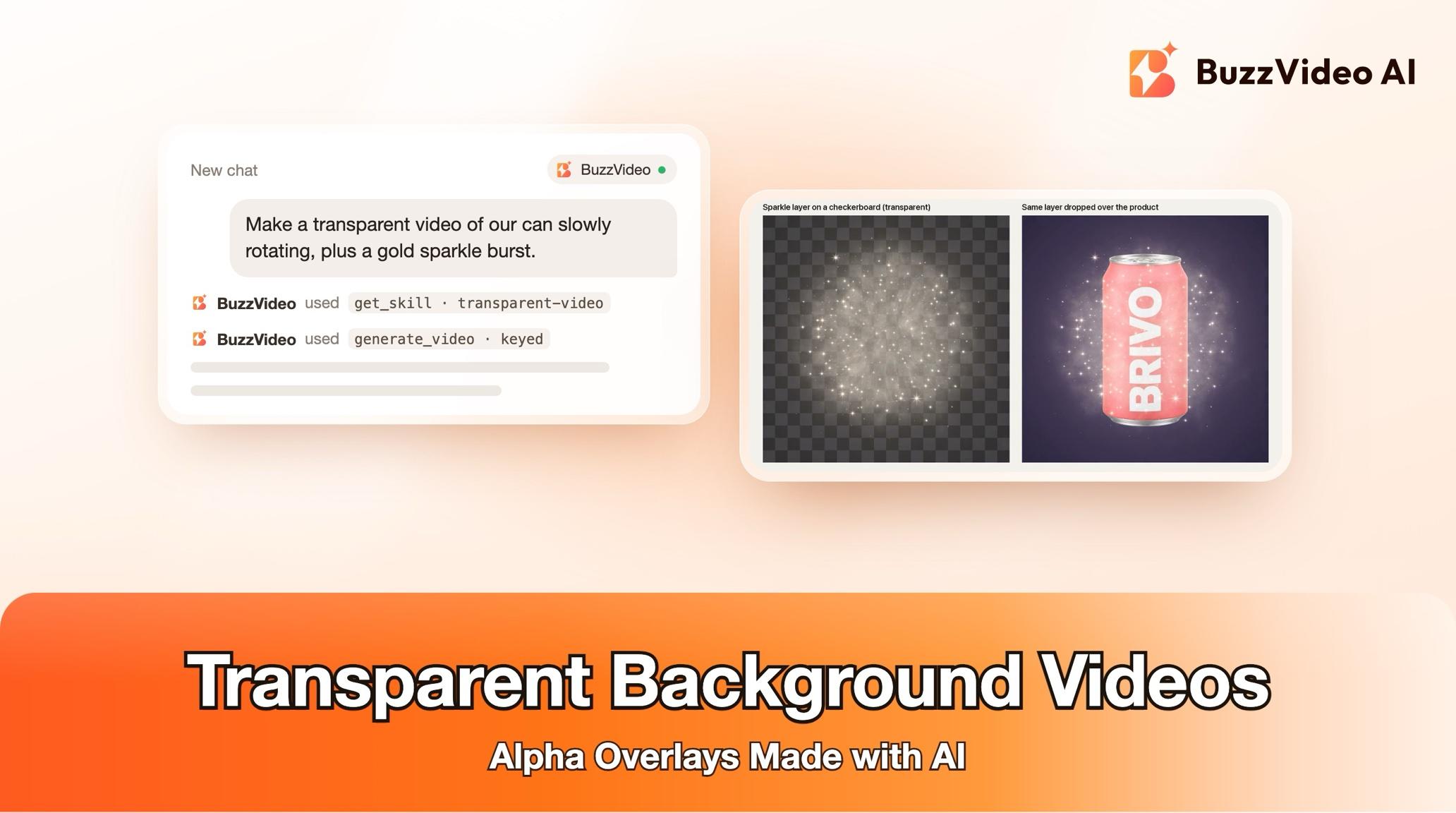
How to Make a Transparent Background Video with AI in ChatGPT or Claude
Make cut-out products, FX, stickers and logo animations with a real alpha channel—ProRes 4444, WebM and PNG—from ChatGPT or Claude with BuzzVideo MCP.
AI video models don't output transparency directly, so the reliable way to make a transparent background video with AI is to generate the element on one flat, evenly lit colour—green for solid subjects, black for glow and sparks—then key that colour out and export a format that carries an alpha channel: ProRes 4444 .mov for editors, WebM with alpha for the web, or a PNG sequence for everything else. With BuzzVideo MCP you can do this from ChatGPT or Claude: the chat follows BuzzVideo's Transparent video guide, plans the background per element, quotes the credits, and keys and exports the files.
One honest caveat up front: keying runs on your computer with ffmpeg. If your AI chat can't run commands there, the guide still gives you the green-screen clip and exact keying steps for your editor, and says clearly that no transparent file was made. This guide covers both paths, the prompt to copy, costs and the review checks.
What is a transparent background video?
It is a clip where everything except the subject is see-through, so you can drop it on top of other footage, a website, an app screen or a livestream. Common uses: a cut-out product spinning, a mascot waving, sparkles or smoke, an animated sticker, or a logo reveal. Normal MP4 (H.264) has no alpha channel, so the format matters as much as the footage.
| Element | Generated on | Why |
|---|---|---|
| Product, person, mascot, sticker, logo | Flat green (blue if the subject has green in it) | Solid edges key cleanly |
| Glow, fire, sparks, sparkles, light leaks | Black | Removed by brightness, or used with a Screen/Add blend |
| Light smoke, fog, dust | Black or mid-grey | Keeps thin wisps semi-transparent |
| Dark smoke or ink | White | Contrast with a dark subject |
Try it: connect BuzzVideo to your AI chat once, then ask for the overlay you need. Connect BuzzVideo MCP →
What do you need before you start?
- A BuzzVideo account with video. Video starts on Starter (pricing).
- BuzzVideo MCP connected to ChatGPT, Claude or another MCP client — see how to use BuzzVideo MCP in ChatGPT and Claude.
- For real transparent files: an AI chat that can run commands on your computer, and an ffmpeg build with the ProRes encoder, the VP9 encoder and the chroma/colour key filters. The guide checks this and tells you how to install a full build if it's missing.
- Your product photo or logo file (vector or high-resolution PNG preferred) for product and logo elements.
- One or two shots the overlay will sit on, so you know whether it needs to work on a light or a dark background.
How do you make a transparent background video step by step?
Step 1 — Say what the element is and where it will be used
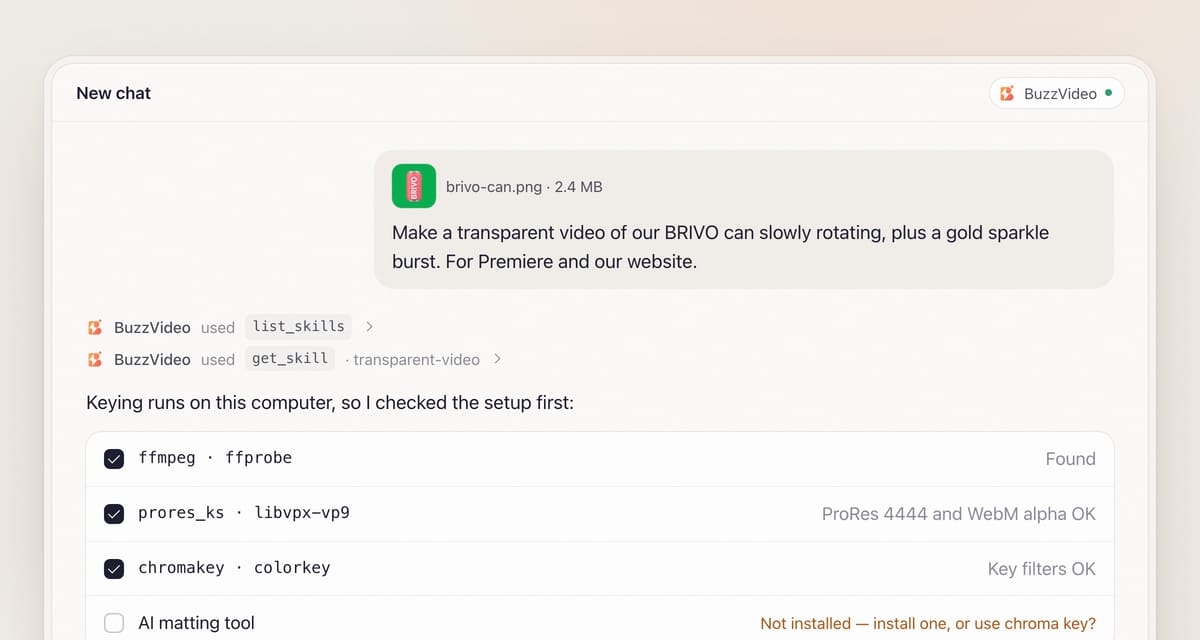
Describe the element, attach the product photo or logo, and say where it will go. The chat loads the Transparent video guide (get_skill) and asks in one round: what the element is, where it will be used (video editor, website or app, livestream, presentation—this decides the formats; default is all three plus previews), and size and timing. Defaults: 1:1 1080×1080 for stickers and particle FX, because a square overlay scales into any ratio; 9:16 or 16:9 1080p for full-frame overlays; 4–5 seconds; and whether it must loop.
Step 2 — The guide checks your setup
If the chat can run commands on your computer, it confirms ffmpeg and ffprobe are there with ProRes, VP9 and the key filters, and sets up one project folder (source, generated, matte, export, preview). An AI background-removal (matting) tool gives cleaner hair, fur and motion blur than a chroma key; if none is installed, the guide asks before installing one, otherwise it uses the chroma key. If the chat can't run commands at all, it switches to the fallback in Step 6.
Step 3 — Approve the element list and the quote
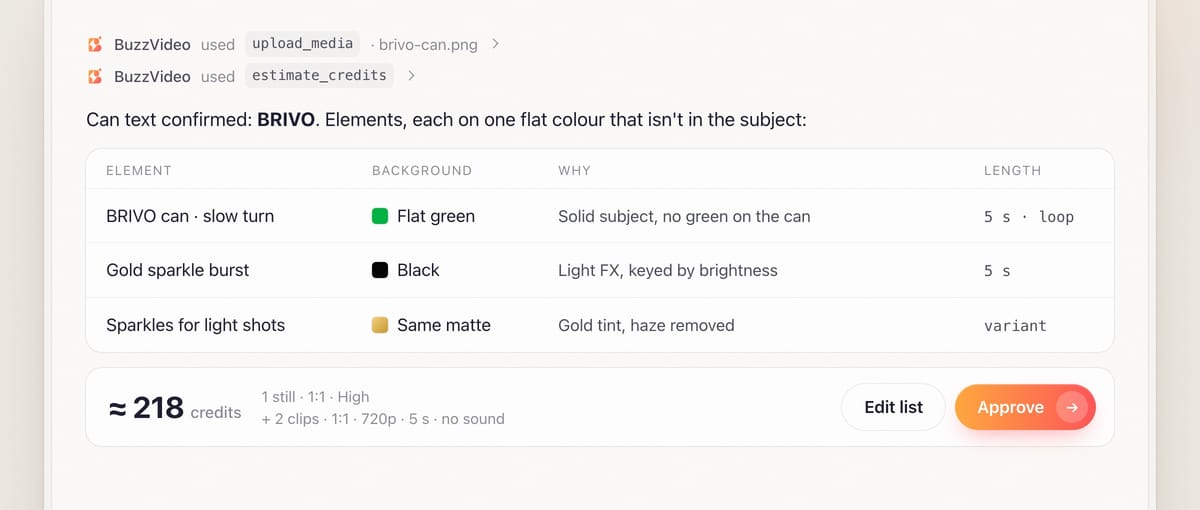
You see each element with its background colour and why, its length, whether it loops, and an estimate_credits quote. The background is always one flat, evenly lit colour that appears nowhere in the subject: no gradient, floor, shadow or set. If a product or logo appears, the guide lists the brand name, product name and every word it read and asks you to confirm; logos are animated from your own file, never redrawn.
Step 4 — Generate on the flat background
For products and logos, the guide first makes a clean still of the subject on the flat colour, reviews it, then animates that exact image, so the packaging stays right. Prompts ask for a locked-off camera (moving cameras smear the background), the whole subject inside the frame with margin, crisp edges, "no reflections of green on the subject" and generated sound off. For sparkles and confetti it adds "all particles stay within the central 70% of the frame" and "no smoke or haze", because haze keyed from brightness turns into a dusty veil over your product. For a pixel-perfect logo, it animates the real logo file in the edit and generates only the effects around it.
Step 5 — Key, export and review
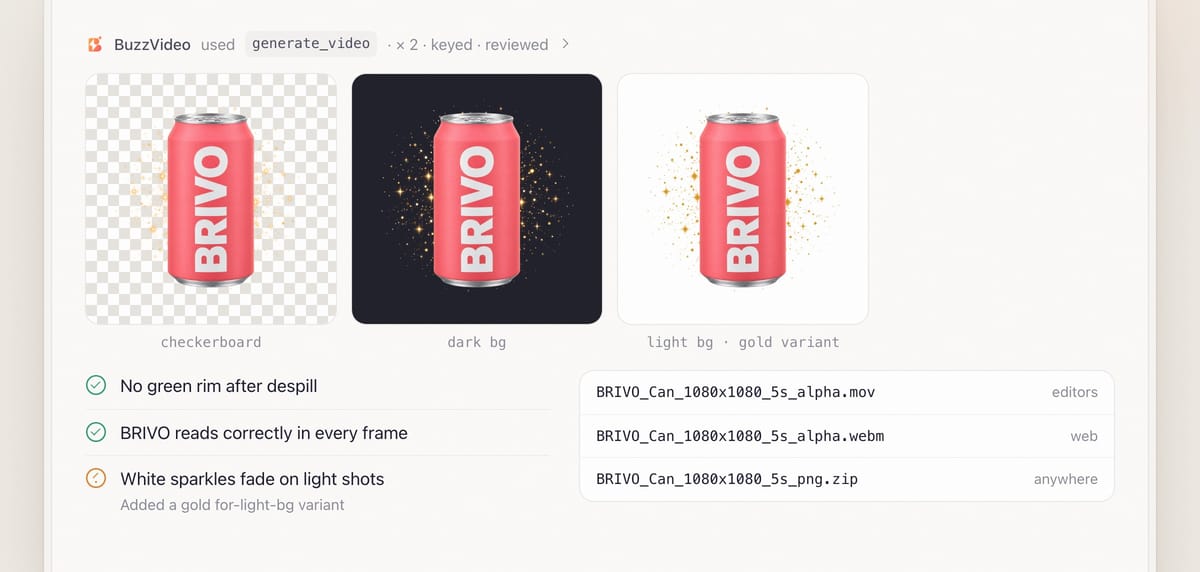
Green and blue are keyed on the actual background colour sampled from several frames (generated backgrounds are rarely the exact value asked for), then despilled so there is no green rim. Black-background FX are converted by brightness, with the black point measured on the frame border of every frame, and the edges feathered so particles fade instead of being cut. If your shots are light, it also makes a gold-tinted "for-light-bg" variant, because white sparkles vanish on a white packshot.
Each element is exported as ProRes 4444 .mov, VP9 WebM with alpha and a zipped PNG sequence, plus preview MP4s on a checkerboard, a dark and a light background. Review is mandatory: every export is checked over those backgrounds and over your own shots for fringes, holes, flicker, cut-off edges and natural semi-transparency; the subject is checked frame by frame against the reference; loops are played several times at the join.
Step 6 — The fallback without local commands
If the chat can't run ffmpeg, you get the green (or black) background clip and the keying steps for your tool: Ultra Key in Premiere Pro, Keyer in Final Cut Pro, 3D or Delta Keyer in DaVinci Resolve, Keylight in After Effects, or Chroma key in CapCut. Black-background FX need no keying—set the layer to Screen or Add. The guide says plainly that no transparent file was produced.
Copy-paste prompt
“Make a transparent background video of [our BRIVO can] [slowly rotating], [1:1, 1080×1080, 5 seconds, looping], for [Premiere Pro and our website]. Also make a [gold sparkle burst] overlay. Our shots are [light], so check both on a white background. Show me the element list, background colours and credit quote before generating.”
Which transparent video format should you use?
| Format | Use it for | Watch out for |
|---|---|---|
| ProRes 4444 .mov | Premiere Pro, Final Cut Pro, DaVinci Resolve, After Effects, CapCut desktop | Large files |
| WebM (VP9) with alpha | Websites and apps in Chrome, Firefox, Edge | Safari and iOS don't play WebM alpha reliably |
| HEVC with alpha .mov | Apple devices, if the encoder is available | Offered only when needed |
| PNG sequence (zip) | Almost everything, including motion tools and game engines | Many files |
| GIF or APNG | Animated stickers | GIF has hard 1-bit edges |
What usually goes wrong, and how does the guide prevent it?
| Problem | What you notice | What the guide does |
|---|---|---|
| Green rim | Green fringe around the subject | Keys on the sampled colour, then despills |
| Smeared background | Patchy key, holes | Locked-off camera, one flat colour, no floor or shadow |
| Particles cut at the edge | Sparks end in a hard line | Particles kept central; alpha feathered over the outer ~8% |
| Dusty veil | Grey haze over the product | Asks for crisp sparkles, no haze; measures the black point per frame |
| Invisible on light shots | White sparkles disappear | Adds a tinted for-light-bg variant |
| WebM shows black on iPhone | No transparency in Safari | Flags it; offers HEVC alpha or PNG |
How much does a transparent video cost?
Only generation uses credits; keying and exporting run on your computer. As a rough example, one product element is a still on GPT Image 2.5 Sunburst at High (10 credits) plus a 5-second 1:1 720p clip on Seedance 2.0 Fast without sound (104 credits)—about 115 credits. Three elements come to roughly 340 credits, about $2.40 on Pro billed yearly. FX that skip the still cost less. See our pricing page and BuzzVideo pricing and cost per ad.
Which BuzzVideo guide should you use instead?
| You want… | Use this guide |
|---|---|
| An element with no background to place on other footage | Transparent video (this one) |
| A full product ad scene with a background | Product ad |
| Product photos in a styled setting | Product photos |
| A finished ad in other sizes | Ad resizer |
Step-by-step guides: Product ad · Product photos · Ad resizer
You don't need to name the guide: describe what you want, and the chat picks the matching one. For more on video models, see how to use Seedance.
Need an overlay today? Connect BuzzVideo to your AI chat and ask for your first transparent element.
FAQs
Can AI generate a video with a transparent background directly?
Not with the video models used here. The guide generates on a flat colour and keys it out on your computer, then exports formats that carry alpha. That is why ffmpeg matters.
Why is my WebM black instead of transparent on iPhone?
Safari and iOS don't play WebM alpha reliably. Ask for an HEVC-with-alpha .mov (if the encoder is available) or use the PNG sequence.
Why green and not black for my product?
Solid subjects key cleanly from green; black is for light-emitting effects that are removed by brightness. If your product is green, the guide switches to blue.
Will hair and fur look right?
A chroma key struggles with fine hair and motion blur. If an AI matting tool is installed (or you agree to install one), the guide compares it with the chroma key and keeps the better result.
Can it loop seamlessly?
Yes. Loop prompts ask for the end pose to match the start, and the last frames are crossfaded into the first if needed; the join is checked several times.
What do I get at the end?
Per element: ProRes 4444 .mov, WebM, PNG zip, preview MP4s and the original background clip, plus notes on keying method, models, credits and what review fixed. Without local commands: the background clip and keying steps.
Last verified: November 2, 2026, against our live pricing and product pages.
Next reads: How to use BuzzVideo MCP in ChatGPT and Claude · Product demo videos from photos · Best AI video generators for marketing

About the author
Monica
Product Manager
As a Product Manager at BuzzVideo AI, I work with marketers and growth teams on AI ad workflows—from brief to shippable creatives. I write about practical product workflows, model choices, and how teams turn product pages into ads that feel native on Meta and TikTok.