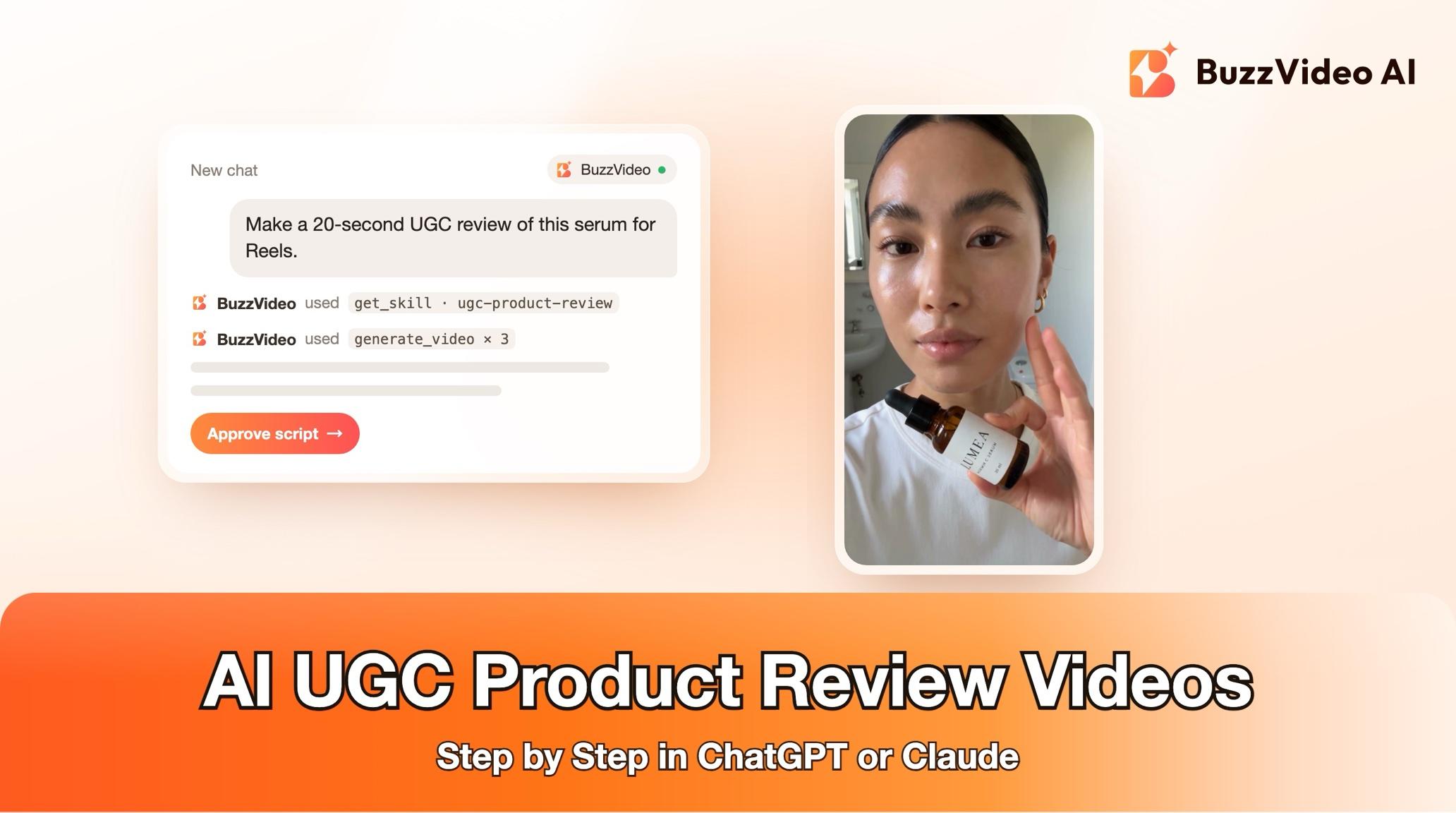
How to Make an AI UGC Product Review Video in ChatGPT or Claude
Step-by-step: make a UGC-style product review video with an AI presenter inside ChatGPT or Claude using BuzzVideo MCP—script, claims check, credits and review.
To make a UGC product review video with AI, give an AI presenter a short first-person script, have them hold your real product in a casual phone-shot setting, and cut the clips into a 15–45 second vertical video with captions. With BuzzVideo MCP you can do the whole job from ChatGPT or Claude: the chat follows BuzzVideo's UGC product review guide, checks your product claims, shows you the script and the credit cost, and only generates after you approve.
This guide walks through each step, with the prompt to copy, the script structure, what it costs, and the review checks that keep the face, hands and packaging from going wrong.
What is a UGC product review video?
A UGC (user-generated content) product review is a short video where one person talks to camera about a product while holding, applying or using it—filmed like a phone video, not a TV ad. Brands run them as Reels, TikTok and Shorts ads because they look like a recommendation from a real customer.
| Part | Typical choice |
|---|---|
| Length | 15–45 seconds (20–30 s is the sweet spot for paid social) |
| Format | Vertical 9:16, captions on |
| Presenter | One person, same face in every clip |
| Setting | Bedroom, bathroom, kitchen or car, natural light |
| Voice | Casual, first person, short sentences |
Try it: connect BuzzVideo to your AI chat once, then ask for a review video of your product. Connect BuzzVideo MCP →
What do you need before you start?
- A BuzzVideo account with video. Video starts on Starter; Seedance 2.0 and 2.5 need Pro or Ultra (pricing).
- BuzzVideo MCP connected to ChatGPT, Claude or another MCP client — see how to use BuzzVideo MCP in ChatGPT and Claude.
- A clean, front-facing product photo, ideally 1500 px or more on the long side, with the label readable.
- The claims you are allowed to make — the one main benefit, plus anything printed on the pack.
- A presenter: a BuzzVideo AI avatar (Free includes up to 10, paid plans unlimited) or your own presenter photo.
How do you make a UGC review video step by step?
Step 1 — Ask for the video in your AI chat
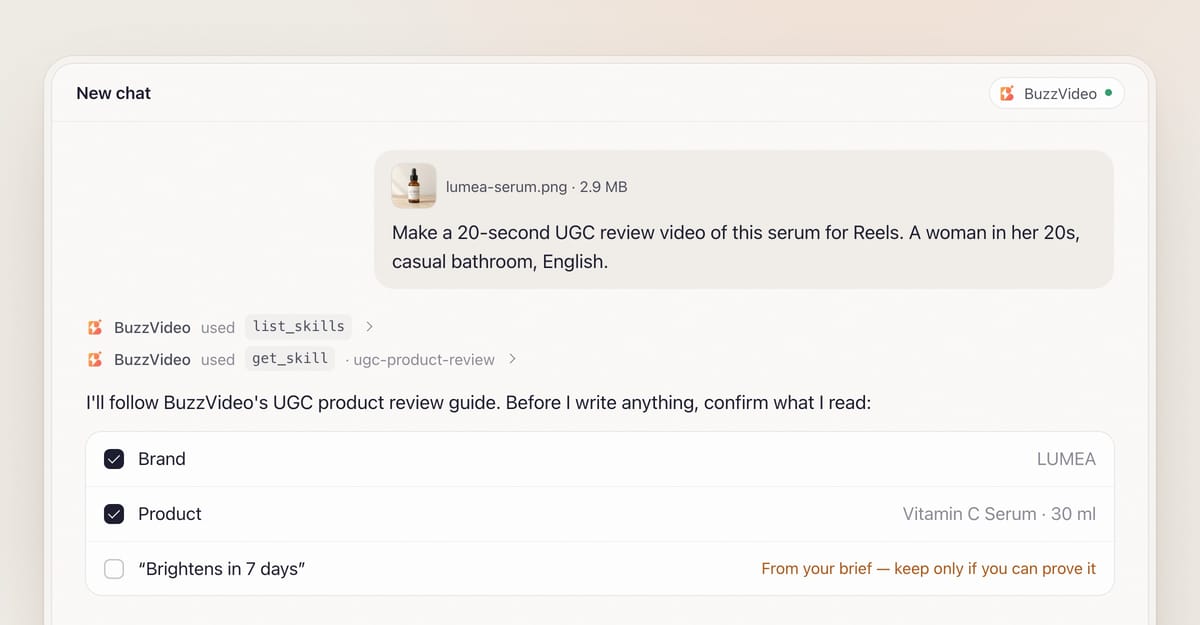
Attach the product photo and say what you want in one message: length, platform, presenter and language. When BuzzVideo MCP is connected, the chat looks up BuzzVideo's guides (list_skills) and loads the UGC product review one (get_skill), so it follows the same steps every time instead of improvising.
It then asks the few things it can't guess, in one round with sensible defaults: the presenter, the script language and how your brand name is pronounced, and the editing style (talking-head by default).
Step 2 — Confirm the claims and pick a presenter
Before writing a single line, the guide lists every brand name, ingredient, number and claim it read from your packaging or brief, and asks you to confirm or correct them. If something is hard to read, it asks rather than guesses. It also won't let the presenter claim personal results you can't back up—"my acne cleared in 7 days" becomes "what I noticed" unless you have proof.
For the presenter, it shows three or four BuzzVideo avatars that match the gender, age range and vibe you asked for, or uses your own presenter photo.
Step 3 — Lock the look with one anchor image
AI video tends to drift: a slightly different face, a bottle that changes shape. So the guide first generates one "holding the product" anchor image—your presenter, in the chosen room, holding the product at chest height with the label facing the camera—and uses it as the reference for every clip. It checks the hand and reads every word on the pack, and rejects any option that invents words.
Step 4 — Approve the script and the credit quote
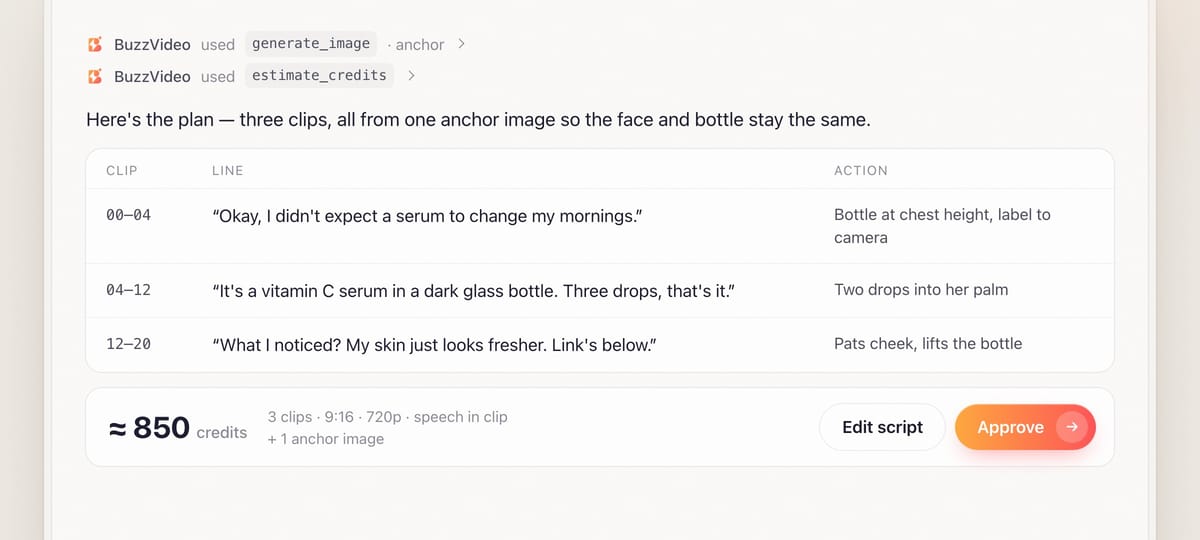
You get the script split into 4–10 second clips—each with the spoken line, the action and the framing—plus a credit quote from estimate_credits. Nothing is generated until you say yes, so this is the moment to fix wording or cut a claim.
Step 5 — Generate the talking clips
After approval, the clips are generated in 9:16 from the anchor image. You choose between two speech routes:
- Speech in the clip — the model generates the voice and lip movement together. Best lip sync.
- Voiceover — the lines are generated as audio and laid over silent clips. More control over the voice; lip sync is weaker, so clips stay short and B-roll covers the mouth where needed.
The presenter keeps one steady grip on the product for the whole clip. Passing it between hands or turning it around is exactly where packaging tends to morph.
Step 6 — Review, caption and deliver
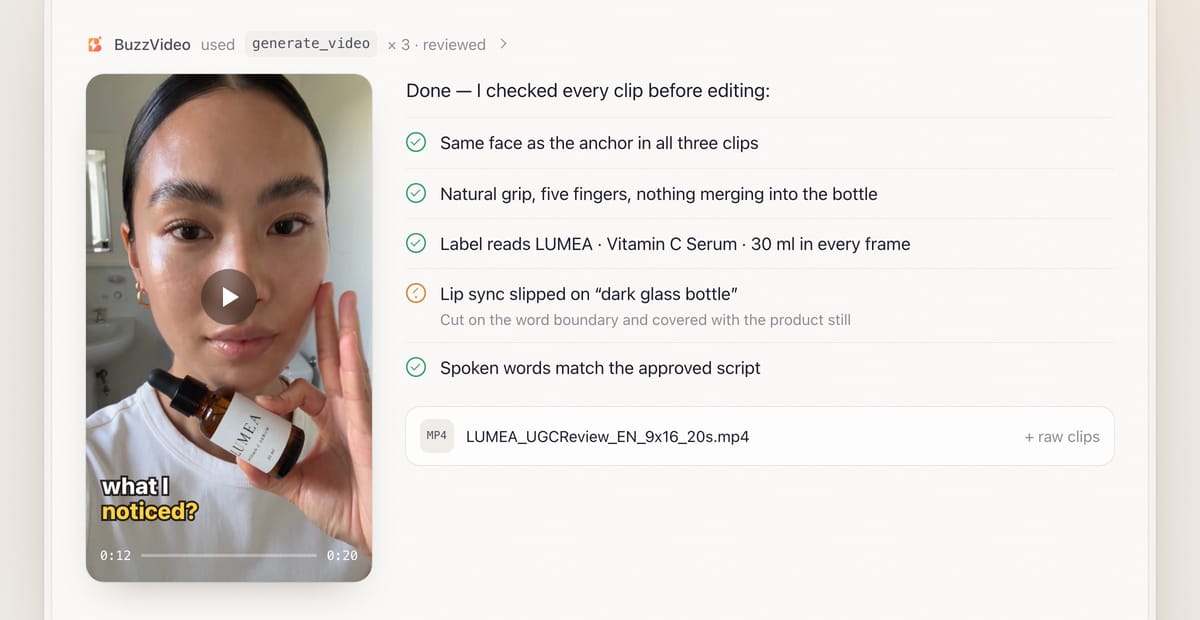
Review is mandatory in this guide. Every clip is checked for face drift, extra or merged fingers, packaging that changes shape or text, and lips out of sync; spoken words are transcribed and compared with the approved script. A short glitch is cut out on a word boundary instead of regenerating the whole clip. Then the clips are edited with word-by-word captions placed beside the face—never over it or the label—and the video ends on the real product photo with a call to action.
You receive the finished file (for example LUMEA_UGCReview_EN_9x16_20s.mp4), the anchor image and raw clips, plus a note of what the review caught and fixed.
Copy-paste prompt
“Make a [20]-second UGC review video of this product for [Reels/TikTok], 9:16, in [English]. Presenter: a [woman in her 20s, friendly and casual], in a [bright bathroom] with window light. Main benefit: [one sentence]. Claims we can make: [list]. Brand name is pronounced [like this]. Show me the claims list, the script and the credit quote before generating.”
How should a 20-second UGC review script be structured?
| Beat | Time | What it does | Example line |
|---|---|---|---|
| Hook | 0–3 s | A problem, a surprise or "I didn't expect…" | "Okay, I didn't expect a serum to change my mornings." |
| Problem | 3–6 s | One line on the pain | "My vitamin C used to go orange in two weeks." |
| Product moment | 6–14 s | One or two confirmed benefits, product in use | "This one's in a dark glass bottle. Three drops, that's it." |
| Proof | 14–18 s | A demo action or what they noticed | "What I noticed? My skin just looks fresher." |
| Call to action | 18–20 s | One clear next step | "Link's below." |
Aim for about 2.5 spoken words per second in English (around 50 words for 20 seconds). For 15 seconds or less, keep only the hook, the product moment and the call to action, in two clips.
What usually goes wrong, and how does the guide prevent it?
| Problem | What viewers notice | What the guide does |
|---|---|---|
| Face drift | "Different person" between clips | One anchor image for every clip; face checked against it |
| Packaging morph | Label melts or changes words | Label text quoted word for word; product kept under ~60% of the frame; real photo used for label close-ups |
| Hand glitches | Extra or merged fingers | One steady grip per clip; clips checked frame by frame |
| Wrong words | Voice says something off-script | Speech-to-text compared with the approved script |
| Captions in the way | Text over the face or label | Captions placed per segment in the free area beside the face |
| Risky claims | Results the brand can't prove | Claims confirmed with you first; personal results softened |
How much does an AI UGC review video cost?
You pay in BuzzVideo credits, and the guide shows the quote before generating. As a rough example, a 20-second review made of three Seedance 2.5 clips at 720p comes to about 850 credits including the anchor image—around $6 on Pro billed yearly. Drafting on a cheaper model, or making a 15-second two-clip version, costs less. Per-model rates are on our pricing page; for the full math see BuzzVideo pricing and cost per ad.
Which BuzzVideo guide should you use instead?
| You want… | Use this guide |
|---|---|
| A person talking about your product | UGC product review (this one) |
| Hands opening a parcel and revealing the product | Unboxing UGC |
| Clothing or accessories worn on a model | Try-on UGC |
| The product itself as a talking character | Talking product |
| A polished multi-scene ad without a presenter | Product ad |
Step-by-step guides: Unboxing UGC · Try-on UGC · Talking product · Product ad
You don't need to name the guide: describe what you want, and the chat picks the matching one.
Do AI UGC review videos need an AI label?
Usually, yes. TikTok requires the AI-generated content disclaimer for ads with AI-generated people or voices (TikTok ad policy), and Meta shows an "AI info" label on ads made or significantly edited with generative AI, with a more visible label for photorealistic AI people (Meta). For tips on making AI UGC feel native, read how to make AI UGC ads that don't look fake.
Ready to make your first review video? Connect BuzzVideo to your AI chat and send a product photo.
FAQs
Can I use my own face instead of an AI avatar?
Yes. Upload your own presenter photo in Step 2 and it becomes the reference for the anchor image and every clip, so the same face appears throughout.
Which languages can the presenter speak?
The script can be written in any language. Most preset voices are English, and they can also read other languages such as Spanish; the guide plays you a sample first so you can check the accent, or you can use your own recording.
How long can a UGC review video be?
The guide makes 15–45 second edits. 20–30 seconds works best for most paid social ads; for 15 seconds or less it uses two clips.
Do I need to know prompting?
No. Describe the video in plain words; the guide asks for anything missing and writes the generation prompts for you. You approve the script and the cost before anything is made.
Can I use it on the Free plan?
MCP connects on every plan, but video generation starts on Starter. On Free you can still try image generation through MCP.
What do I get at the end?
A finished 9:16 video with captions, the anchor image, the raw clips, the final script, the models used, the credits spent, and a note of what the review caught and fixed.
Last verified: November 2, 2026, against our live pricing and product pages.
Next reads: How to use BuzzVideo MCP in ChatGPT and Claude · AI UGC ads that don't look fake · Talking avatar ads workflow

About the author
Monica
Product Manager
As a Product Manager at BuzzVideo AI, I work with marketers and growth teams on AI ad workflows—from brief to shippable creatives. I write about practical product workflows, model choices, and how teams turn product pages into ads that feel native on Meta and TikTok.