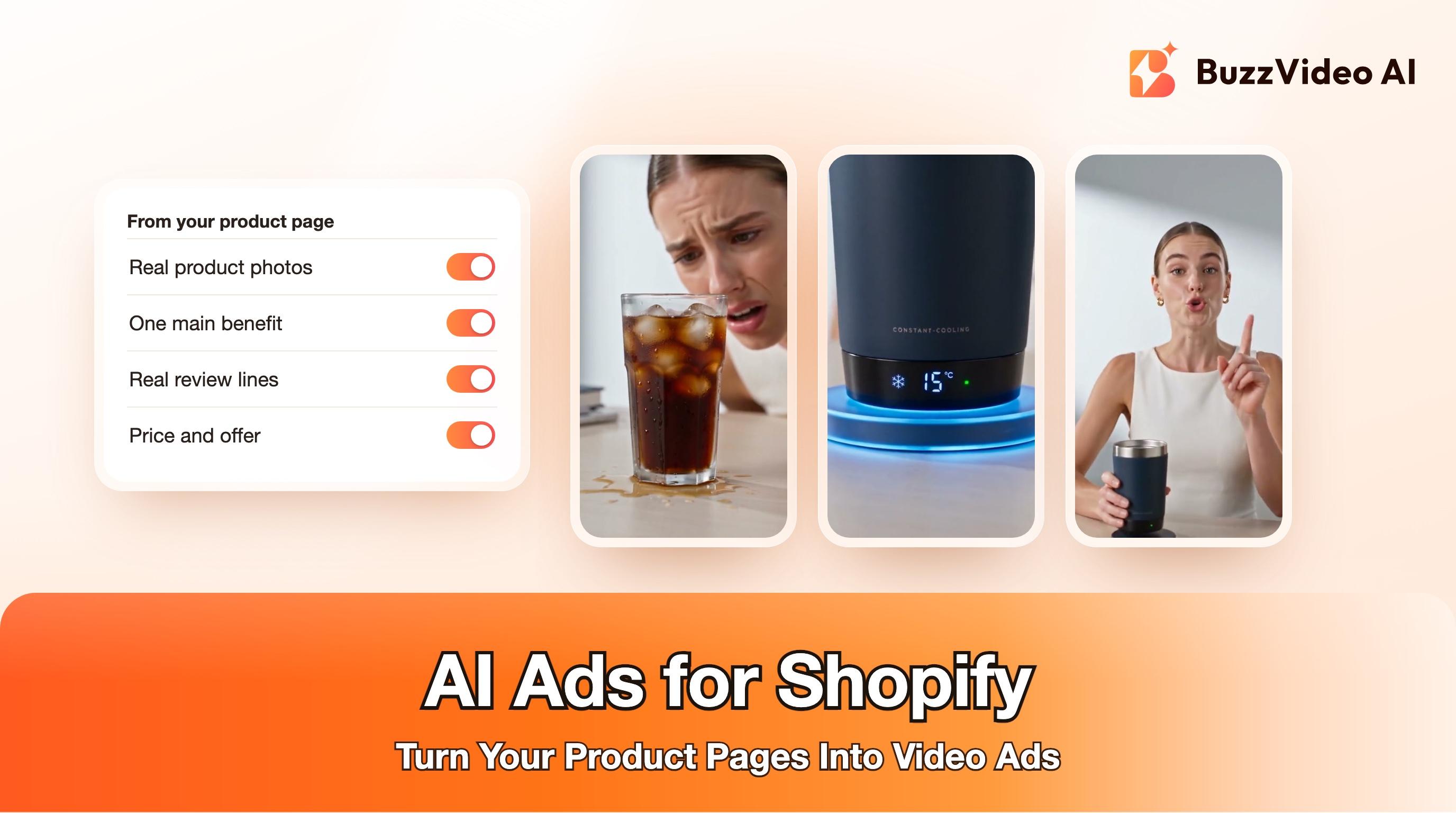
AI Ads for Shopify: How to Turn Your Product Pages Into Video Ads
How to make AI video and image ads for a Shopify store: what Sidekick covers, what to pull from your product page, formats, prompts and a BFCM plan.
To make AI ads for a Shopify store, start from the product page you already have. Take 3 to 5 real product photos, the main benefit and one or two customer quotes, turn them into two or three short vertical videos and a few static images with an AI ad tool, keep every claim and price identical to the product page, label realistic AI content, and test the ads on Meta and TikTok. Shopify's own AI assistant, Sidekick, can write copy and generate images, but Shopify's documentation doesn't mention video generation, so for video ads you need a separate generator.
That's the whole method; the rest of this guide is the detail: what Shopify's built-in tools cover, what to pull from your product page, which formats to make for which channel, prompts you can copy, and a realistic plan for Black Friday week. We build BuzzVideo AI, one of the tools that turns a product page into ads, and we'll say where Shopify's own tools are enough.
Can Shopify make ads with AI on its own?
Partly. Shopify's Help Center says Sidekick can write and edit text for your store, such as product descriptions and email copy, and generate images from a text prompt for things like hero banners and marketing materials, using up to 5 reference images per generated image (Shopify Help Center). Image generation has monthly limits that depend on your Shopify plan, and generated images aren't added to your store until you save them to Files.
The same page describes Autopilot, which creates and runs marketing campaigns across connected channels including Meta Ads, Microsoft Advertising and Snapchat, and Sidekick can set it up and summarize how it's doing (Shopify Help Center). Neither page mentions generating video (Sidekick overview).
| What you need | Shopify's built-in AI | Separate AI ad tool |
|---|---|---|
| Product descriptions, email and ad copy | Yes (Sidekick) | Also yes |
| Banners and marketing images | Yes, within plan limits | Yes, with model choice |
| Short vertical video ads | Not mentioned in Shopify's docs | Yes |
| Creator-style UGC, demos, unboxings | Not mentioned in Shopify's docs | Yes |
| Running campaigns on connected channels | Autopilot | Usually not: you upload to Ads Manager |
So a sensible split for most stores is: copy and simple banners in Sidekick, video and ad-ready product visuals in a separate tool, and campaigns in Meta Ads Manager, TikTok Ads Manager or Autopilot.
Try it: paste one of your product page links into BuzzVideo's Marketing Agent and pick URL to Video; it reads the page and drafts a vertical video ad. Turn a Shopify product page into a video →
What do you need from your Shopify product page?
Everything an AI tool needs is already on the page. Collect it once per product, in one folder, before you generate anything.
| From the page | Why the AI tool needs it |
|---|---|
| 3 to 5 real product photos: front, side, in use, packaging | Reference images keep the product's shape, colour and label accurate |
| Product name exactly as written on the label | So any visible label in the footage matches the real one |
| The one main benefit, in your own words | This becomes the ad's message and hook |
| One or two short customer review lines | Real social proof for captions; never invent quotes |
| Price and current offer | Added in editing, not in the prompt, so it stays exact |
| Variants (colours, sizes) | Decide which variant the ad shows; keep it consistent across shots |
Use photos with the product clearly visible and the label readable. If you only have one decent photo, our guide to AI product photography from one photo shows how to make the extra angles first.
How do you make AI video ads for a Shopify product?
These are the steps we use for one product. The first product takes the longest; after that you reuse the same folder structure and prompts.
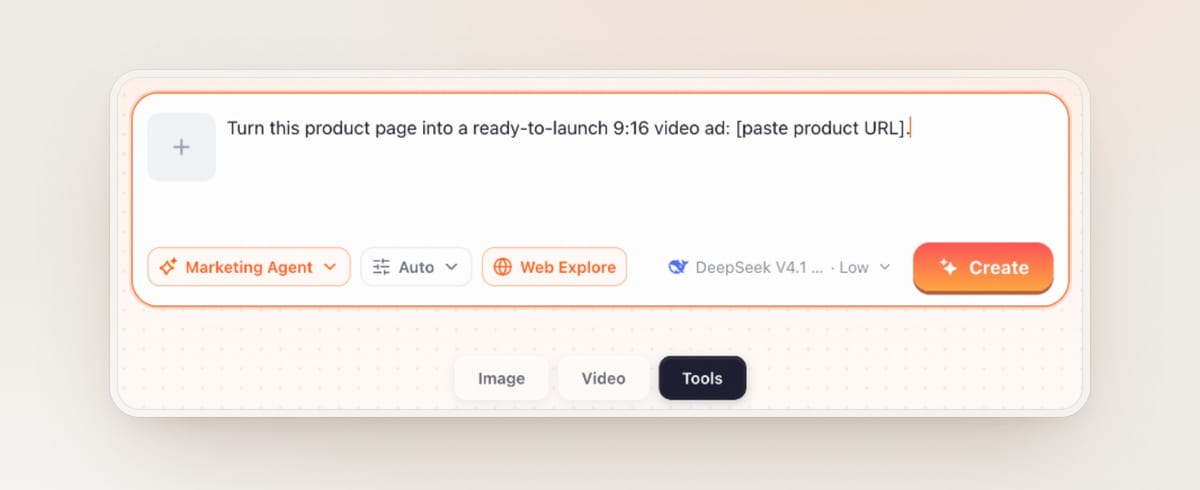
1. Start from the product URL
Paste the product page URL into an AI ad tool that can read pages. In BuzzVideo's Marketing Agent, URL to Video turns the page into a draft video; Product Demo turns a listing into a demo walkthrough. Our product URL to video guide walks through the URL step in detail.
2. Attach your real photos
Even if the tool reads images from the page, attach your best 3 to 5 product photos as references. Reference photos are what keep the product in the video looking like the product you ship.
3. Pick two or three formats, not ten versions of one
Make different concepts around the same message: for example a problem and solution demo, a creator-style review and a short product close-up. Different concepts tell you more than ten copies of the same video with different captions.
4. Check every frame
Scrub each clip and zoom in on hands, the product and its label. Reject anything where the product changes shape, the label turns into gibberish or a hand does something impossible. Regenerate or cut that part out.
5. Add price, offer and captions in editing
Put text in empty space, never over the product, a face or hands. Use the exact price and offer from your product page.
6. Upload and label
Upload to Meta Ads Manager and TikTok Ads Manager and switch on the AI-generated content setting where it applies. Meta labels ads made or significantly edited with its own AI tools (Meta); TikTok asks you to disclose realistic AI-generated content (TikTok ad policy). Our AI ad labeling guide covers the settings.
Here's an example of the problem-and-solution format from our own use-case library: a 15-second multi-shot product ad for a fictional cooling cup.
Which ad formats should a Shopify store make?
You don't need every format. For most stores, two videos and two statics per hero product is enough to start testing.
| Format | Best for | Where it runs |
|---|---|---|
| Problem and solution demo (9:16, 10 to 15 s) | Gadgets, home, kitchen, anything with a visible result | Reels, TikTok, Shorts |
| Creator-style review (9:16, 15 to 30 s) | Beauty, wellness, fashion, products that need trust | TikTok, Reels |
| Product close-up or unboxing (9:16 or 4:5) | Premium packaging, gifts, giftable bundles | Reels, Stories, TikTok |
| Static with one benefit line (4:5) | Testing messages cheaply before making video | Facebook and Instagram feed |
| Offer card (4:5 or 9:16) | Black Friday and Cyber Monday promotions | Feed, Stories, retargeting |
For statics, our AI static ads guide has four layouts that work, with prompts. If a winning image ad already exists, Meta's Advantage+ creative can also generate a video from it, a feature Meta made generally available on October 6, 2026 (Meta).
What prompts work for Shopify product ads?
Paste these into any AI video tool and replace the brackets. Attach your product photos as references every time.
“Problem and solution: 9:16 vertical video, 12 seconds. 0-2 s: [a person in a real setting] runs into [the problem, shown as an action]. 2-6 s: they pick up [the product], label facing the camera, held in one hand. 6-10 s: close-up of [the product doing its one job], result clearly visible. 10-12 s: they smile at the result. Natural light, exactly one product in frame, no on-screen text, no logos, no prices.”
- Template. Add price, offer and captions in editing.
“Creator review: 9:16 selfie-style video filmed on a phone propped on a shelf, 15 seconds. A [age, style] creator in [a real home setting] talks to camera, holding [the product] in her left hand the whole time, label facing the camera. She points out [one feature] up close with her free right hand. Warm daylight, slightly imperfect framing, no on-screen text, no logos, no prices.”
- Template. Write the spoken line yourself from a real review; don't invent claims.
“Product close-up: 4:5 vertical video, 8 seconds, slow camera orbit around [the product] on [a surface that fits the brand], soft studio light, shallow depth of field. The label reads exactly "[BRAND]". Exactly one product, no hands, no text, no logos.”
- Template.
How do you keep AI ads consistent with your store?
Shoppers click through to your product page, so the ad has to match what they find there. A few rules that prevent most problems:
- Show the variant the link lands on. If the ad shows the blue one, link to the blue one.
- Use only claims that are on your product page. If the page doesn't say "waterproof", the ad shouldn't either.
- Copy the price and offer from the page into the edit, and update the ad when the offer ends.
- Use real review lines with permission, never generated testimonials.
- If a generated shot shows something the product can't do, cut it, even if it looks great.
What's a realistic Black Friday timeline for Shopify ads?
Black Friday is Friday, November 27, 2026 and Cyber Monday is Monday, November 30. Ads can take time to clear review, and the first days of a new ad are mostly learning, so work backwards:
| When | What to do |
|---|---|
| 2 weeks before | Pick 3 to 5 hero products, collect page assets, make 2 videos and 2 statics each |
| 10 days before | Launch at normal budget to find which concept wins |
| 5 days before | Make offer versions of the winners: same video, new end card and caption |
| Black Friday to Cyber Monday | Scale the winners; swap in fresh hooks if results drop |
Less than two weeks to go? Merge the first two rows: pick two or three hero products, make two concepts each and launch them at normal budget straight away, then add the offer end cards a few days before Black Friday.
Our Black Friday video ads guide goes deeper into offer cards and timing.
What does it cost to make AI ads for a Shopify store?
Sidekick is part of your Shopify admin, with image limits that depend on your plan (Shopify Help Center). In BuzzVideo, video generation starts on the Starter plan at $14 a month billed yearly with 1,900 credits a month; Pro is $35 and Ultra $63 a month billed yearly. The Free plan's 500 one-time credits cover images only (pricing). Our cost per ad breakdown shows how many videos each plan makes. Whichever tool you use, test two tools on your own product before committing.
Ready to try it on your best seller? Paste the product page link into the Marketing Agent and make your first video ad.
FAQs
Can Shopify Sidekick make video ads?
Shopify's Help Center says Sidekick can write copy and generate images from a prompt; it doesn't mention generating video (Shopify Help Center). For video ads, use a separate AI video tool.
What is the best AI ad generator for Shopify?
One that reads your product page, uses your real product photos as references and exports plain MP4 files for Meta and TikTok. We build BuzzVideo; Creatify and HeyGen are other options, so test two on your own product.
How do I make AI ads for my Shopify store for free?
Sidekick can generate images and copy inside your Shopify admin within your plan's limits, and BuzzVideo's Free plan includes 500 one-time credits for images. Video generation usually needs a paid plan.
Can I turn a Shopify product URL into a video ad?
Yes. Tools like BuzzVideo's URL to Video read the product page and draft a video; attach your own product photos too so the product looks right (guide).
Do AI ads for Shopify products need an AI label?
Label ads with realistic AI-generated people, voices or scenes. TikTok's ad policy asks for disclosure (TikTok), and Meta labels ads made with its own AI tools.
How many AI ads should a Shopify store test?
Start with two videos and two statics per hero product, each a different concept around the same message, then make variants of the winner.
Last verified: November 16, 2026, against our live pricing and product pages and Shopify's Help Center pages linked above.
Next reads: Product URL to video ad · Black Friday video ads · AI static ads · Turn a product link into an ad with ChatGPT or Claude

About the author
Monica
Product Manager
As a Product Manager at BuzzVideo AI, I work with marketers and growth teams on AI ad workflows—from brief to shippable creatives. I write about practical product workflows, model choices, and how teams turn product pages into ads that feel native on Meta and TikTok.