How to Make a Faceless Explainer Video with AI in ChatGPT or Claude
Script, storyboard, illustrated scenes, AI voiceover and a captioned edit—make a faceless explainer video inside ChatGPT or Claude with BuzzVideo MCP.
To make a faceless explainer video with AI, write a short script for the ear with a hook in the first two seconds, split it into one scene per idea, generate every scene in one consistent illustrated style, then lay an AI voiceover and word-by-word captions over the cut—no presenter on camera. With BuzzVideo MCP you can do the whole job from ChatGPT or Claude: the chat follows BuzzVideo's Faceless explainer guide, gets your approval on the script, the facts and the storyboard, and only then quotes and spends credits.
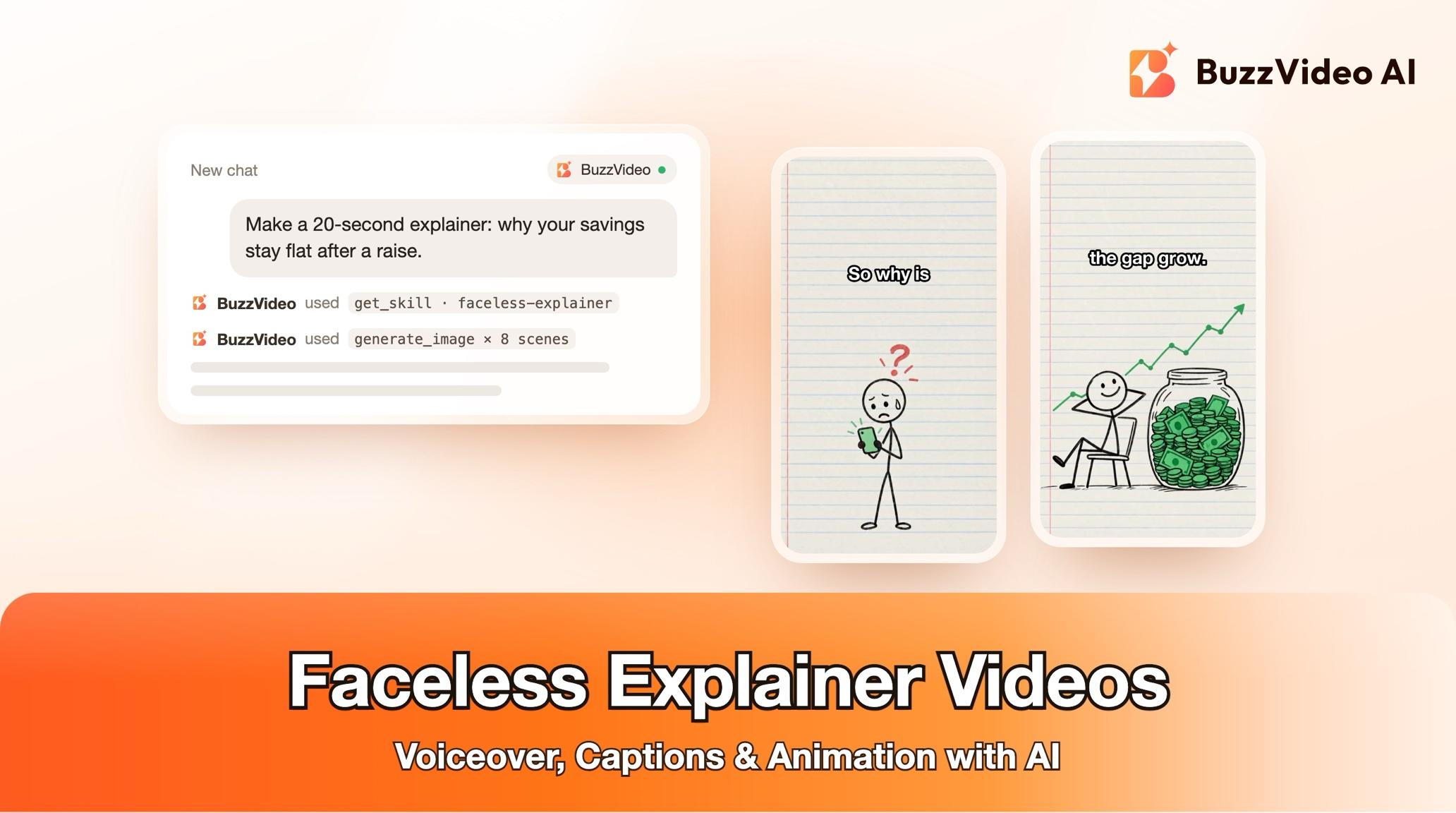
This guide walks through each step with a worked example—a 20-second "why is my bank account still empty after a raise?" explainer—plus the prompt to copy, the style options, costs and the review that keeps scenes on-style and facts on-script.
What is a faceless explainer video?
It is a narrated video where pictures carry the story and nobody appears on camera: a "how it works" or "why" video, a brand story, a narrated listicle or an educational short. Channels and brands like them because they scale without a presenter, and a strong visual style becomes recognisable across a series.
| Part | Default |
|---|---|
| Length | 60 seconds (your length wins) |
| Format | 9:16; 16:9 for YouTube |
| Style | Flat pastel, or stickman, editorial mixed media, hand-drawn, paper diorama, or your own reference |
| Pacing | About 2.5 spoken words per second in English; one idea per scene, 1.5–4 s each |
| Voice | Preset voices, mostly English; captions word by word |
Try it: connect BuzzVideo to your AI chat once, then give it a topic and an audience. Connect BuzzVideo MCP →
What do you need before you start?
- A BuzzVideo account. Scene images and voiceover work on every plan; animated clips need Starter or above (pricing).
- BuzzVideo MCP connected to ChatGPT, Claude or another MCP client — see how to use BuzzVideo MCP in ChatGPT and Claude.
- A topic, an audience and an ending: what the viewer should do or feel at the end.
- Sources for your facts, or a chat that can search the web. Unsourced facts get flagged.
- Optional: a product photo, a style reference image, and music you have rights to.
How do you make a faceless explainer step by step?
Step 1 — Brief the topic and the look
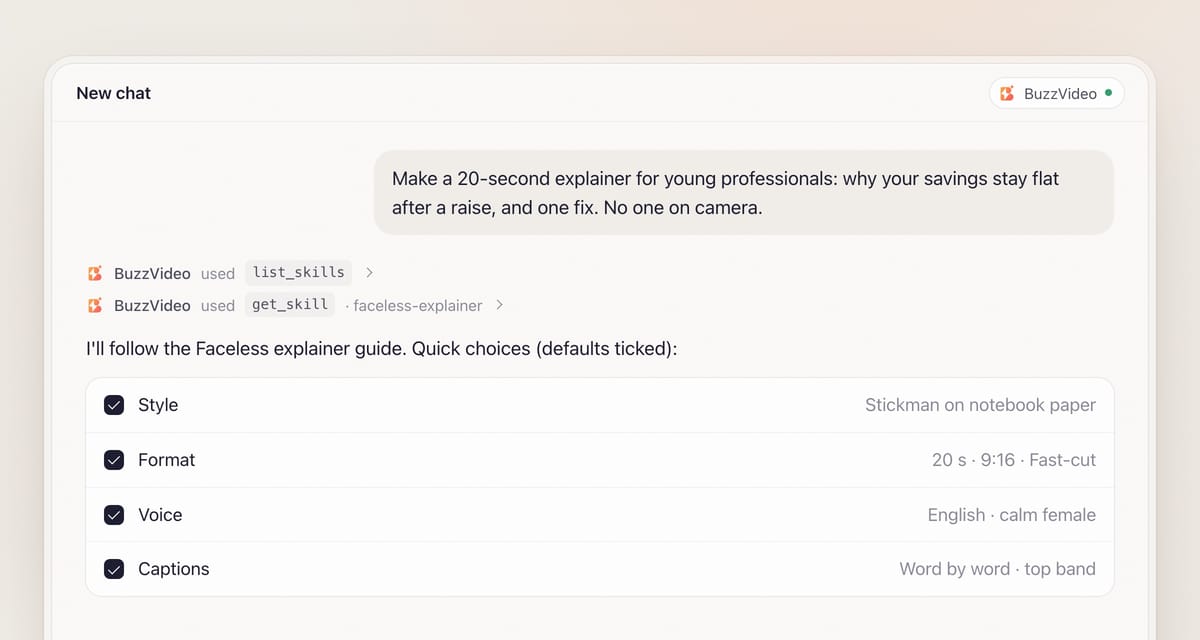
Say what the video explains, who it is for and how it should end. The chat loads the Faceless explainer guide (get_skill) and asks in one round: topic and goal, any product to feature, visual style (default flat pastel), format (60 seconds, 9:16), language and voice, and editing style (Fast-cut for social by default; for slower stories it suggests a scene change every 2–4 seconds). Most preset voices are English, and they can also read other languages such as Spanish; the guide plays you a sample first so you can check the accent, or you can use your own recording.
Step 2 — Approve the script and the facts
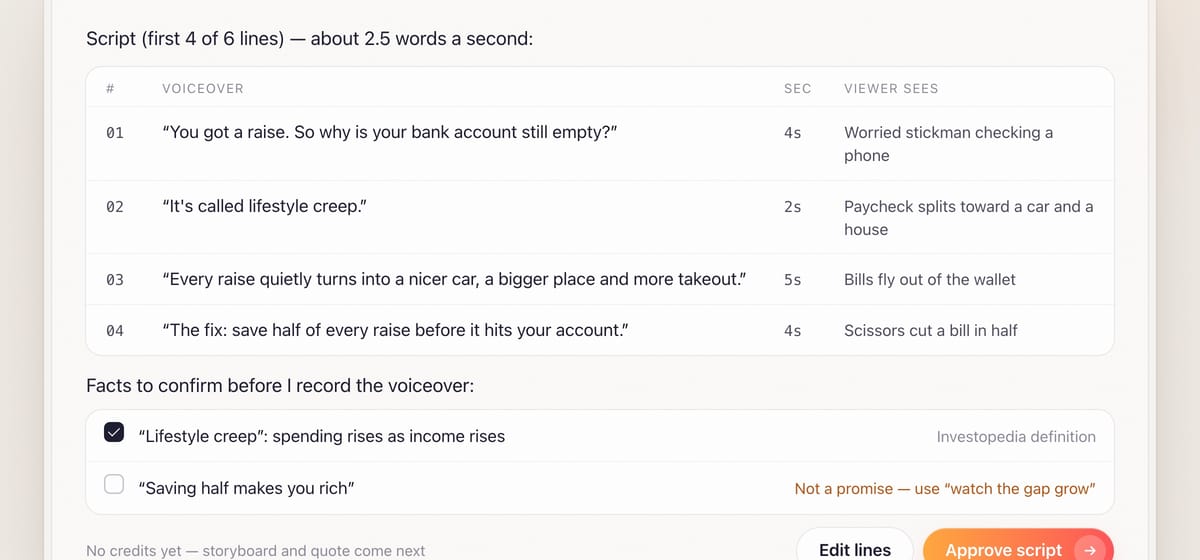
The script comes as a table—line number, voiceover line, rough seconds and what the viewer sees—built as a hook in the first two seconds, three to five beats with one idea each, a payoff and a call to action. Written for the ear: short sentences, about 2.5 words per second.
Explainers state facts, so the guide lists every fact, number, health or performance claim and brand name with its source and asks you to confirm before any voiceover is made. A fact it can't source is marked, with softer wording suggested. If it couldn't search the web, facts are marked unverified.
Step 3 — Approve the storyboard and style block
Each line becomes one or more scenes of 1.5–4 seconds, with composition, action, camera move and whether it stays a still (moved in the edit) or becomes a generated clip. One style block is reused word for word in every prompt: medium, line quality, palette with hex codes, light, texture, "full-bleed" and "no text, no logos, no watermarks". Every scene also keeps a caption band empty—top or bottom quarter—so captions never sit on the subject. Words, labels and numbers are added in the edit, where they are spelt correctly.
If a character appears in more than one scene, the guide first makes a character reference sheet (front, side, back, expressions) for you to approve; for videos under 30 seconds it prefers showing a character once or only partly, such as hands. Products go in as reference images.
Step 4 — Generate the scenes
After the estimate_credits quote, all scene images are made in one batch, each prompt being the scene plus the style block plus any character or product description. They are reviewed and fixed before anything is animated—fixing a still is cheaper than fixing a clip. Scenes that need real motion are animated from their approved still ("animate this exact image; first frame identical"), with simple, slow motion and generated sound off; the rest stay stills with a slow push-in or pan in the edit.
Step 5 — Voiceover, edit, review and delivery
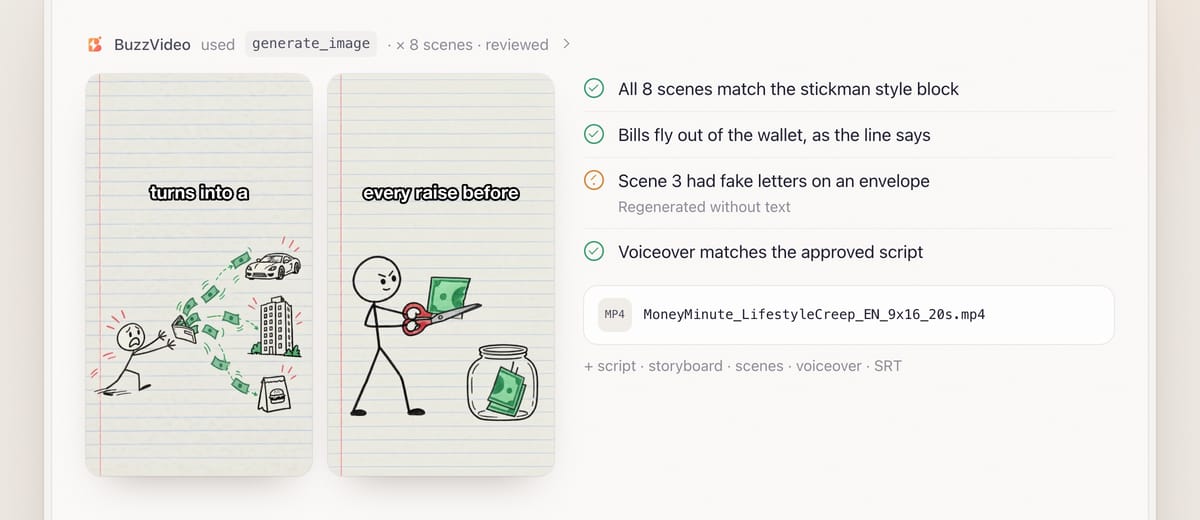
The voiceover is generated one line at a time with subtitles on, written without commas around the brand because every comma adds a pause, and pauses over 0.2 seconds are cut. The edit (via the Video editor guide) times each scene to its line, keeps stills moving so nothing is frozen for more than about two seconds, and adds titles and word-by-word captions in the safe area.
Review is mandatory: every image is checked against the style block and reference sheets for gibberish text and wrong hands, and every diagram must show the mechanism the line states—bills flying out of the wallet when the line says the money is spent, not into it. The final cut must match the approved script word for word, with loudness about −14 LUFS. You get the video (for example MoneyMinute_LifestyleCreep_EN_9x16_20s.mp4), script, storyboard, scenes, voiceover and SRT. If the chat can't run commands on your computer, you get the scenes, voiceover, SRT and an edit plan instead of a rendered video.
Copy-paste prompt
“Make a [20]-second faceless explainer, [9:16], in [English], about [lifestyle creep: why savings stay flat after a raise], for [young professionals]. End with [save half of every raise before it hits your account]. Style: [stickman on notebook paper]. Voice: [calm female]. List every fact with its source, and show me the script, storyboard and credit quote before generating.”
Which visual style should you pick?
| Style | Feels like | Good for |
|---|---|---|
| Flat pastel (default) | Calm, clean, friendly | How-it-works, home and lifestyle topics |
| Stickman | Quick, funny, low-key | Fast listicles, explainer series |
| Editorial mixed media | Magazine collage | News-style, money and culture topics |
| Hand-drawn | Warm, personal | Brand stories, education |
| Paper diorama | Crafted, tactile | Premium brand stories |
Whichever you choose, the style block is what keeps scene 12 looking like scene 1. You can also send one reference image and let the guide write the block from it.
What usually goes wrong, and how does the guide prevent it?
| Problem | What viewers notice | What the guide does |
|---|---|---|
| Style drift | Scenes look like different artists | One style block reused word for word |
| Gibberish text | Fake words on signs and labels | No words in images; text added in the edit |
| Wrong diagram | Arrows contradict the voiceover | Mechanism checked against the line |
| Captions on the subject | Text over the key object | Empty caption band planned in every scene |
| Unsourced claims | "Says who?" | Facts listed with sources and confirmed first |
| Draggy voiceover | Long pauses | No commas around the brand; pauses over 0.2 s cut |
How much does a faceless explainer cost?
As a rough example, a 60-second 9:16 explainer with 15 scene images on GPT Image 2.5 Sunburst at High (8–10 credits each, about 130), six of them animated as 5-second 720p clips on Seedance 2.0 Fast (104 each, 624) and 60 seconds of Seed Audio voiceover (a few dozen credits) comes to about 800 credits—roughly $5.70 on Pro billed yearly. Keep every scene a still and it drops to under 200. The guide quotes before generating; see our pricing page and BuzzVideo pricing and cost per ad.
Which BuzzVideo guide should you use instead?
| You want… | Use this guide |
|---|---|
| A narrated video with no one on camera | Faceless explainer (this one) |
| A person talking about your product | UGC product review |
| Your product as a talking character | Talking product |
| Characters acting a multi-episode plot | Short drama |
| A software or app demo | Product promo video |
Step-by-step guides: UGC product review · Talking product · Short drama · Product promo video
You don't need to name the guide: describe what you want, and the chat picks the matching one. For a comparison of tools, see best AI video generators for marketing.
Have a topic in mind? Connect BuzzVideo to your AI chat and ask for a script.
FAQs
Which voices can I use?
Most preset voices are English, in different ages and styles, and you can play samples before choosing. A cloned voice is only allowed for your own voice or one you have rights to.
How does it keep the style consistent?
One style block, with palette hex codes, is pasted into every scene prompt, recurring characters use one approved reference sheet, and review fails any scene that breaks style.
Will the facts be correct?
The guide lists every fact with its source and asks you to confirm before the voiceover is made; anything it can't source is flagged with softer wording. You stay responsible for the final claims.
Can I feature my product?
Yes. Send a clean product photo; it is used as a reference so the product stays identical, or recognisable and on-brand in stylised looks.
What about music?
Voiceover is generated; music is not. Send a track you have rights to; otherwise any placeholder is clearly labelled so you can swap it before posting.
What do I get at the end?
The captioned video, script, storyboard, character sheet if any, every scene image and clip, the voiceover and the SRT—plus the style used, models, voice, credits and what review fixed.
Last verified: November 2, 2026, against our live pricing and product pages.
Next reads: How to use BuzzVideo MCP in ChatGPT and Claude · Best AI video generators for marketing · Cheapest AI video generators

About the author
Monica
Product Manager
As a Product Manager at BuzzVideo AI, I work with marketers and growth teams on AI ad workflows—from brief to shippable creatives. I write about practical product workflows, model choices, and how teams turn product pages into ads that feel native on Meta and TikTok.